Adding a client to a Sale
Frequently Asked Questions
Section titled “Frequently Asked Questions”How to change a client in a completed sale?
It is not possible to change the client after the sale is completed.
Alternative solution:
- Perform a full return of the incorrect sale
- Create a new sale with the correct client
Can a sale be made without specifying a client?
Yes, a sale can be completed without a client:
- Simply skip the step of adding a client
- Finalize the sale as usual
Details:
The sale will be saved in the system It will not be linked to a client card It will not affect the client’s purchase history
When creating a sale, you can specify a client to retain their purchase history and optimize business processes.
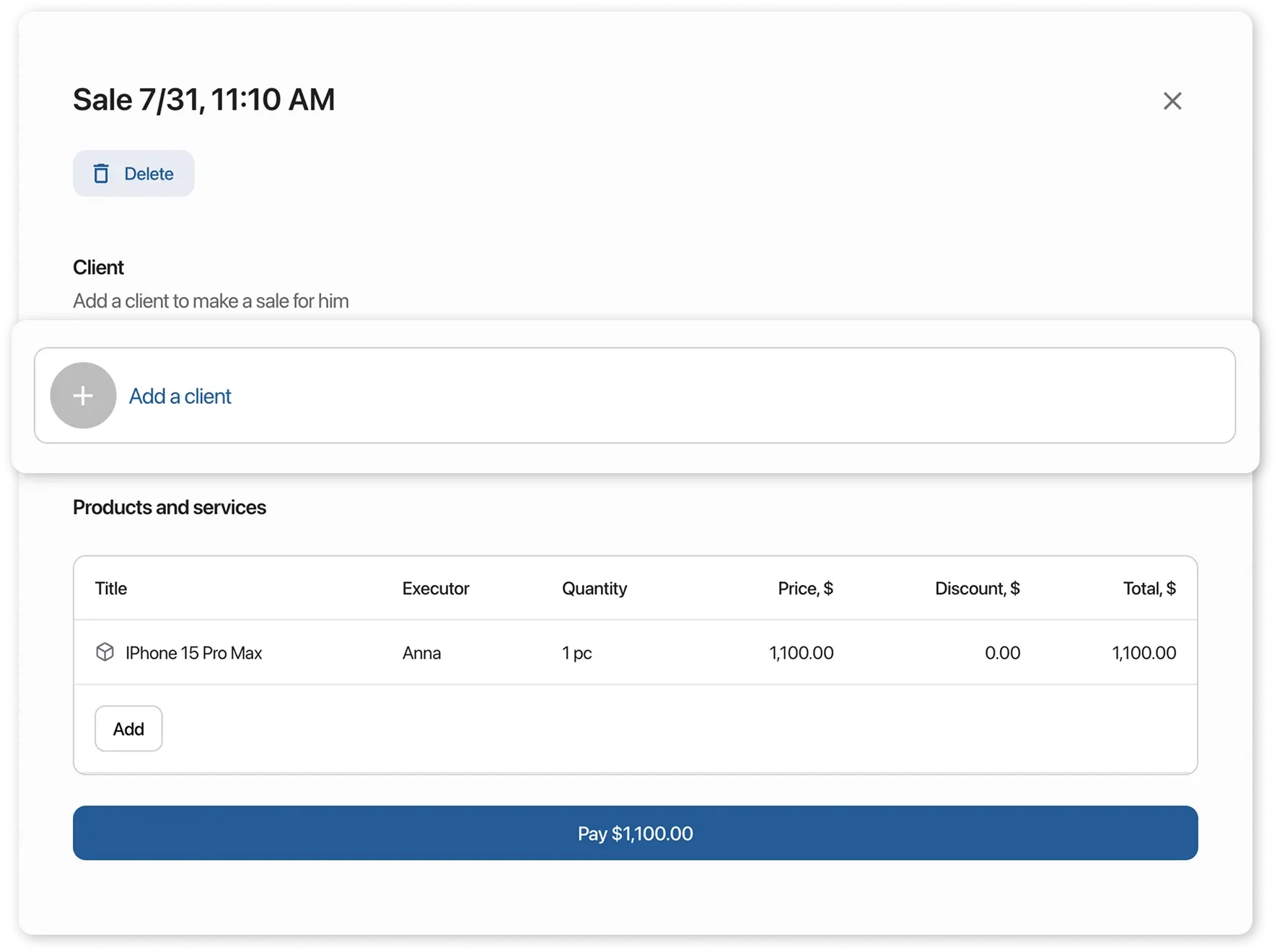
How to add a new client during a sale?
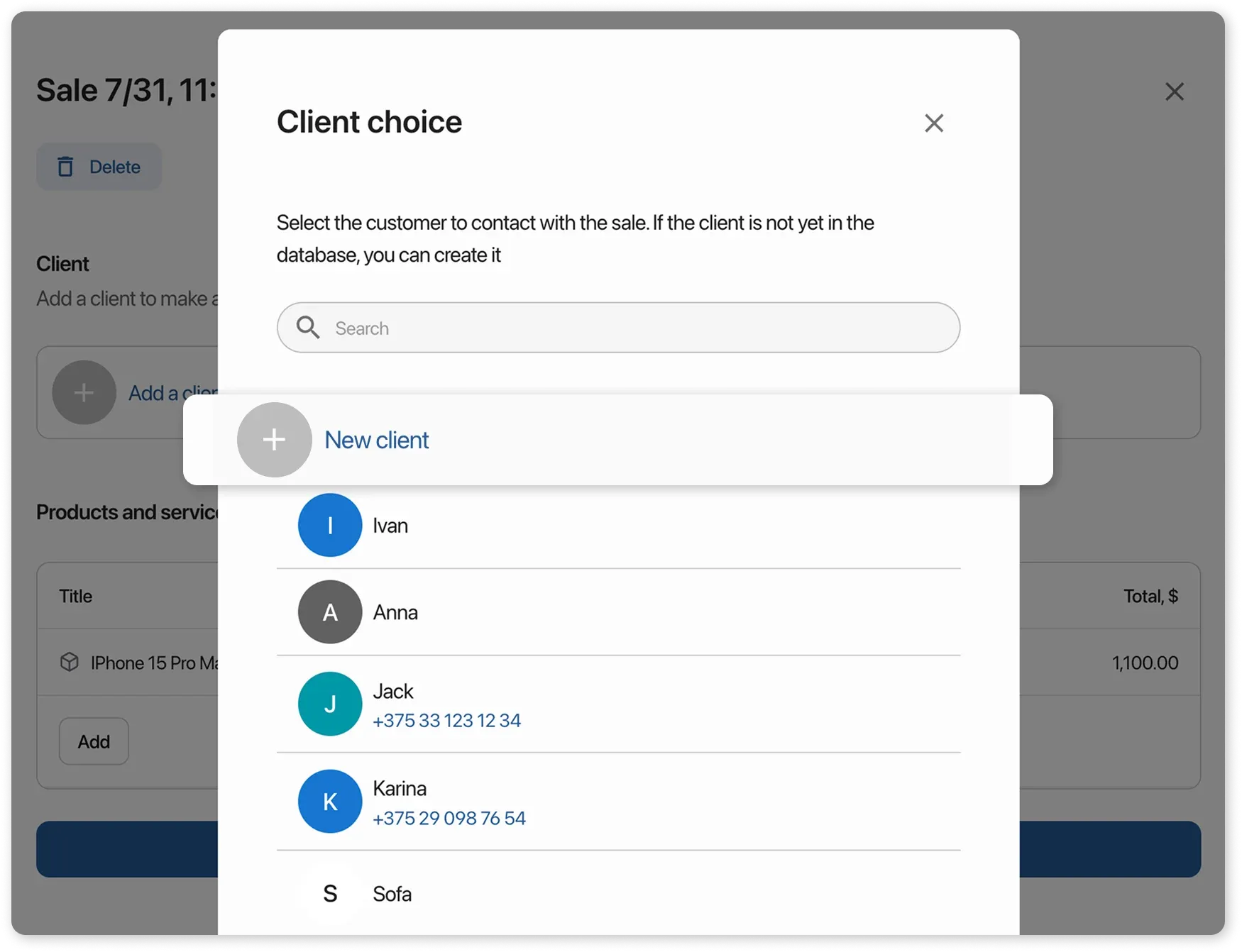
Section titled “How to add a new client during a sale?”If the client is not in the database, you can add them on the spot:
- In the client selection window, click “New client”
- Fill in the client card
- Click “Save”
The new client will automatically be added to the current sale.
Printing a Receipt
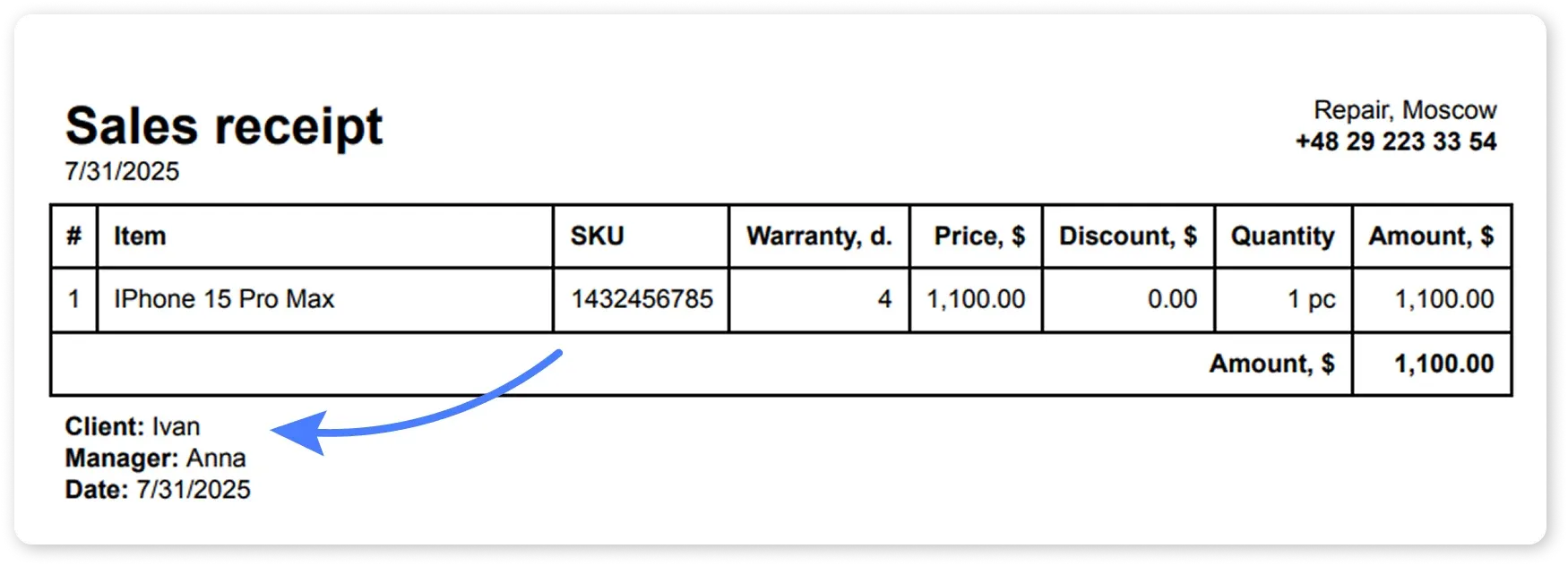
Section titled “Printing a Receipt”After completing a sale, you can print a receipt with client information for:
- Accurate record keeping
- Reporting purposes
Monitoring Unpaid Sales
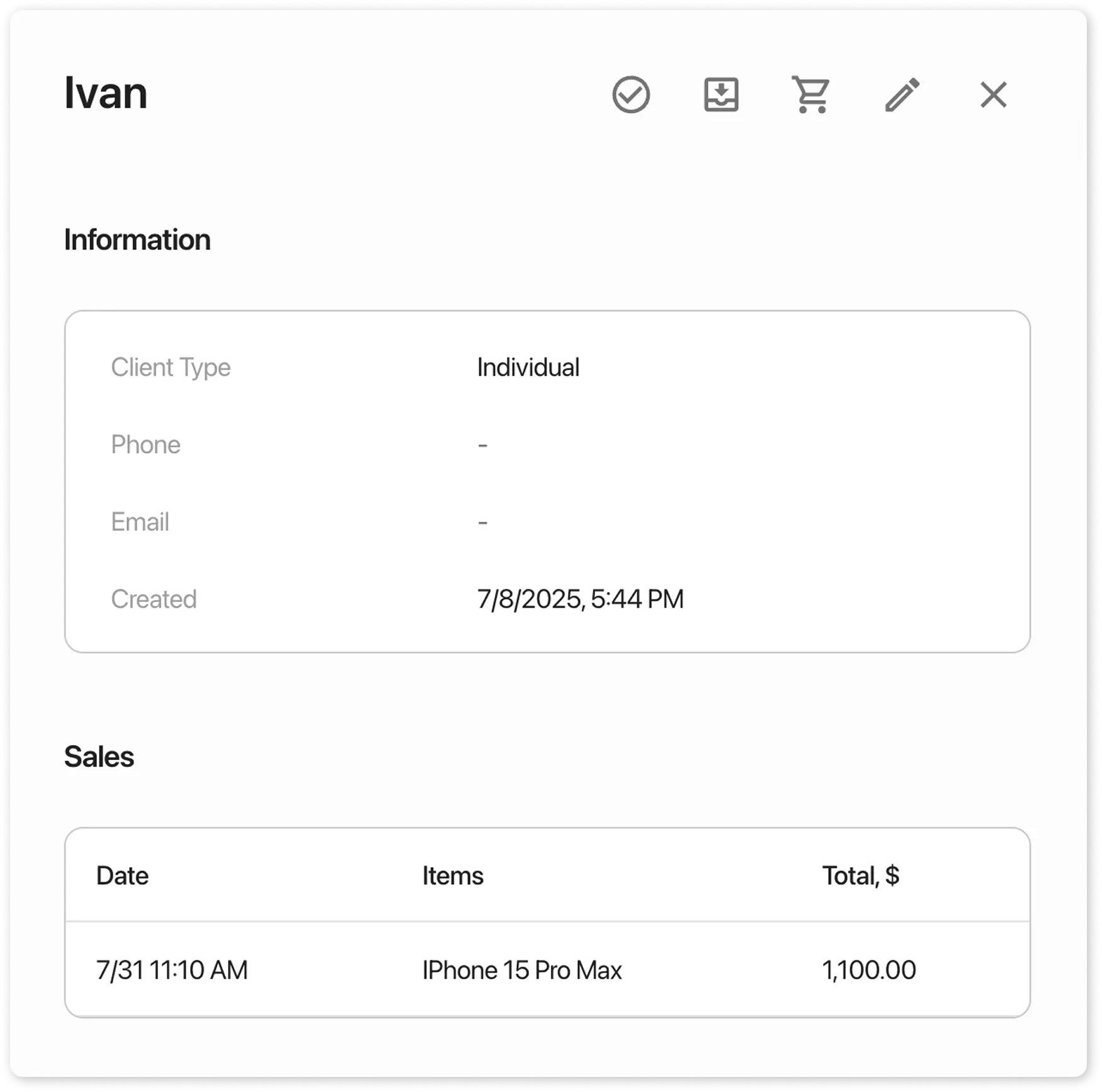
Section titled “Monitoring Unpaid Sales”- Sales are saved in the client’s card (including unpaid ones)
- If you provide goods on credit, track outstanding balances to take timely action
Speeding Up Work with clients
Section titled “Speeding Up Work with clients”You can create sales directly from the client card to:
- Process transactions faster
- View up-to-date client information