Client Reviews
Frequently Asked Questions
Section titled “Frequently Asked Questions”Where do negative reviews go?
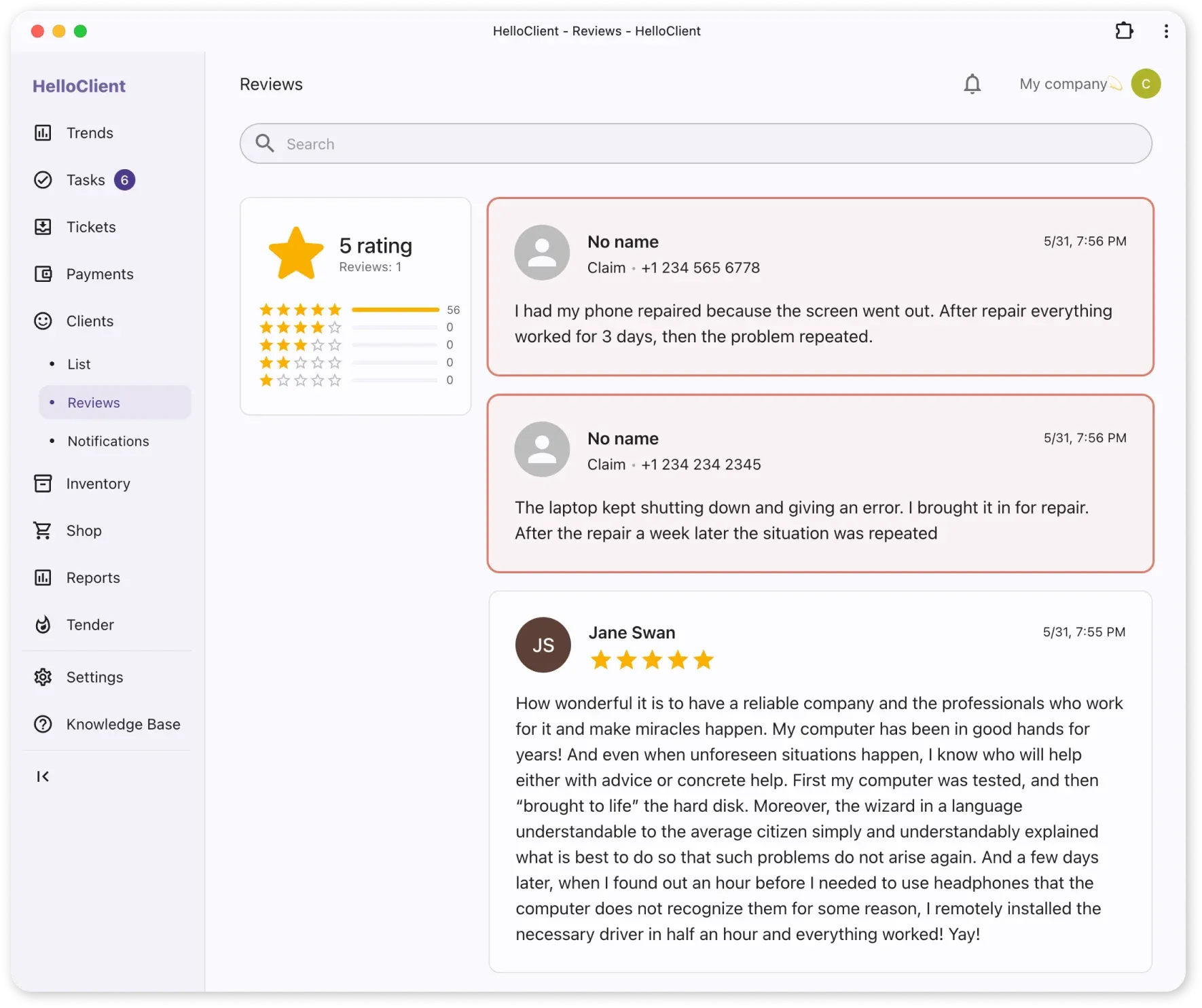
Negative reviews go to Marketing / Reviews. Here you’ll find:
- Client complaint text
- Client phone number for contact
Client left review but it doesn’t appear in system
Solution depends on review type:
- Negative reviews: check Marketing / Reviews
- Positive reviews:
- Automatically sent to maps
- Published after platform moderation
- Publication time depends on platform rules
HelloClient makes it quick and easy to collect client reviews using the “Leave a Review” widget.
Clients don’t need to search for your pages — they are taken directly to the review form.
Set up review collection in 3 steps:
Section titled “Set up review collection in 3 steps:”- Go to Settings → Integrations → Widget “Leave a Review”
- Add links to your business profiles: Google Maps, Yandex Maps, 2GIS
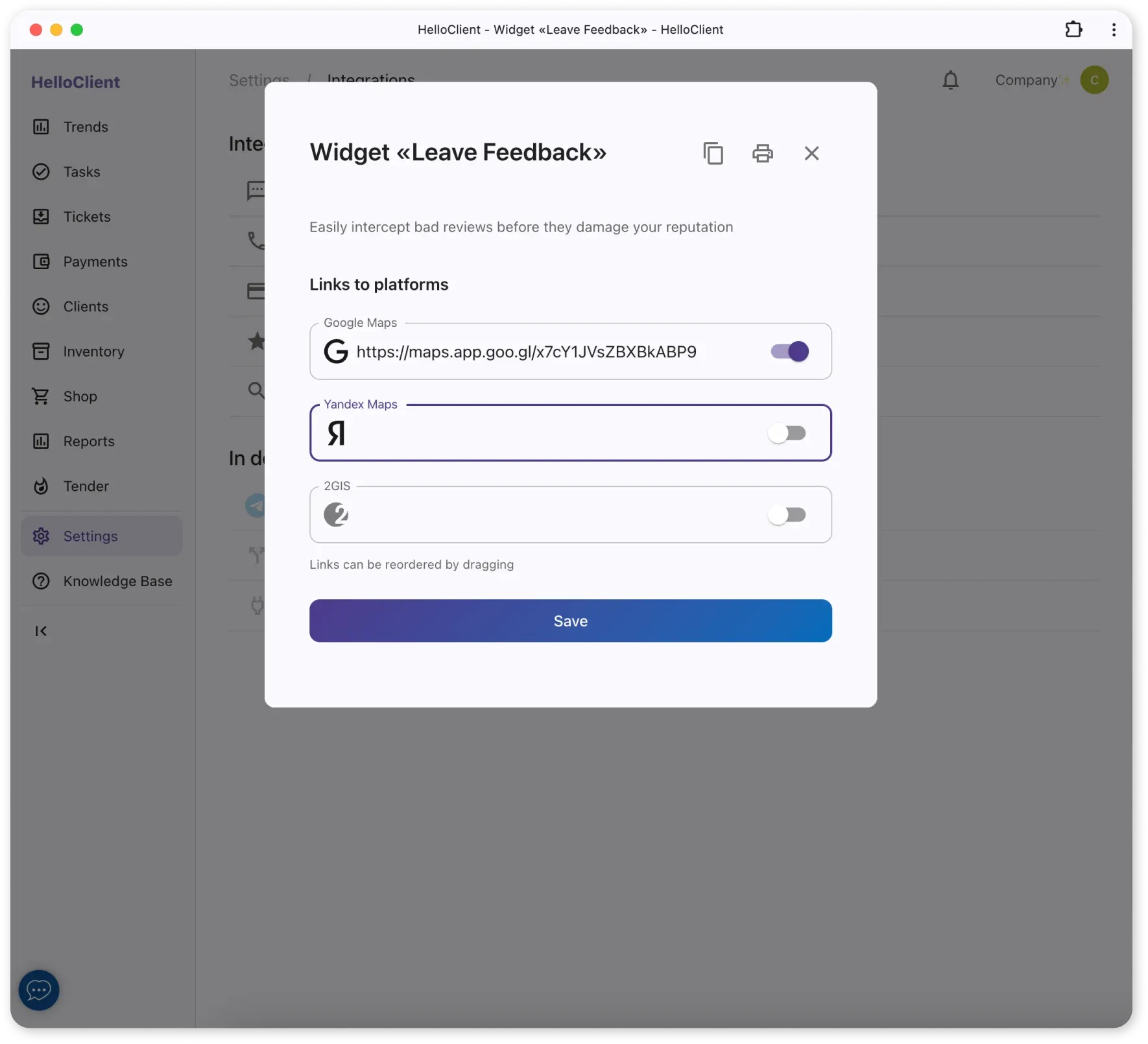
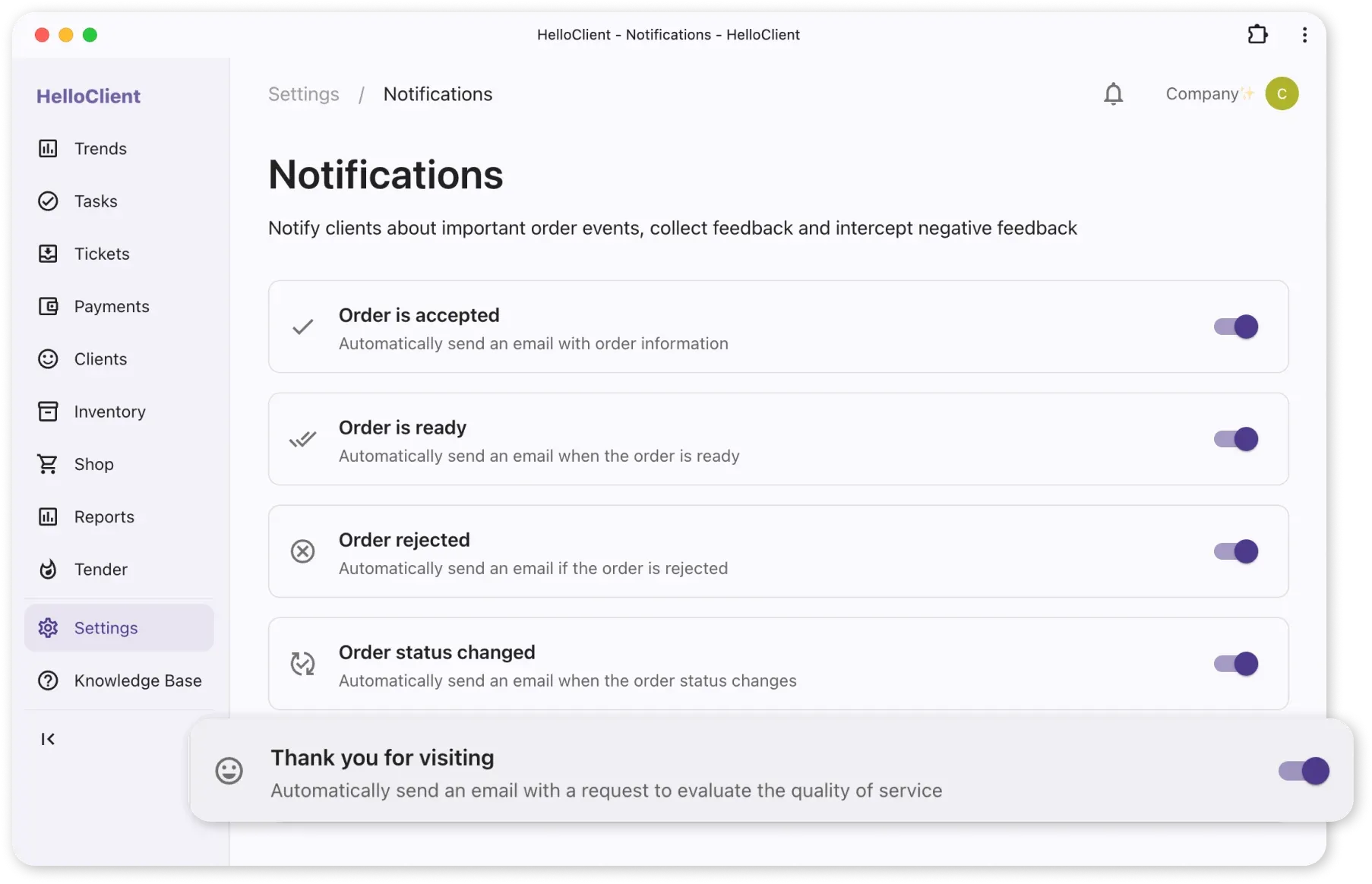
- Go to Settings → Notifications and enable the “Thank you for visiting” notification — this is the one that sends the review link to the client.
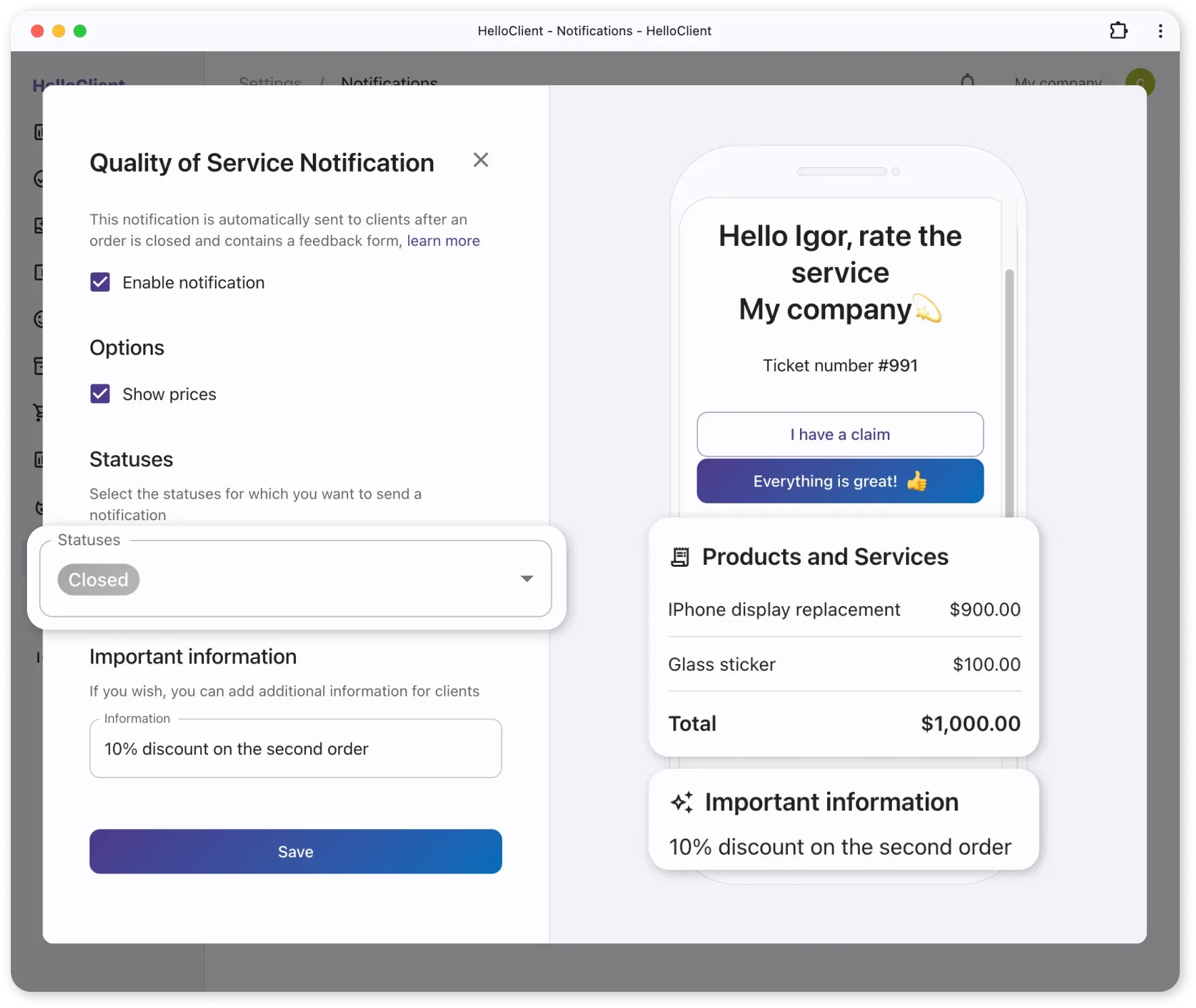
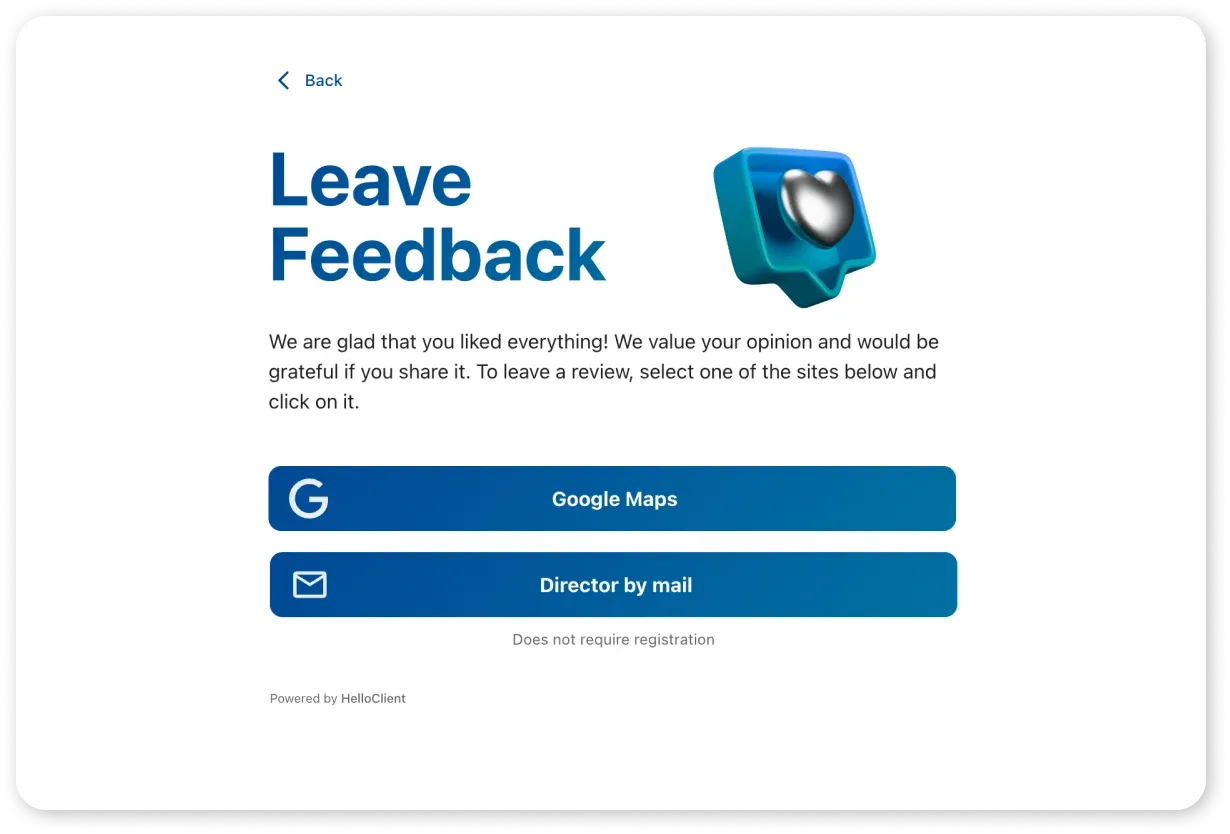
After filling in all fields, the widget will look like this:
How to get links for integrations?
Section titled “How to get links for integrations?”For Yandex Maps:
- Find the company in Yandex Maps search
- Copy the URL
For Google Maps:
- Find the company in Google Maps
- Copy the URL link
For 2GIS:
- Open the company profile in 2GIS
- Copy the direct link
Where can I view reviews?
Section titled “Where can I view reviews?”Go to Marketing → Reviews
- Negative reviews are highlighted in red (clicking the order number opens the order card so you can quickly resolve the issue)
- Positive reviews are published on external platforms
Ways clients can leave a review
Section titled “Ways clients can leave a review”HelloClient offers 5 convenient ways for clients to leave a review.
How to intercept negative reviews?
Section titled “How to intercept negative reviews?”- Negative reviews → are sent to the HelloClient:
- Positive reviews → are automatically published on platforms (Yandex / Google Maps, 2GIS)
Result:
- Higher company rating
- Better search engine visibility