Order Number Counter
Frequently Asked Questions
Section titled “Frequently Asked Questions”Can I change the number of an existing order?
It is not possible to change the number of a single order.
Order numbers are assigned automatically when the order is created.
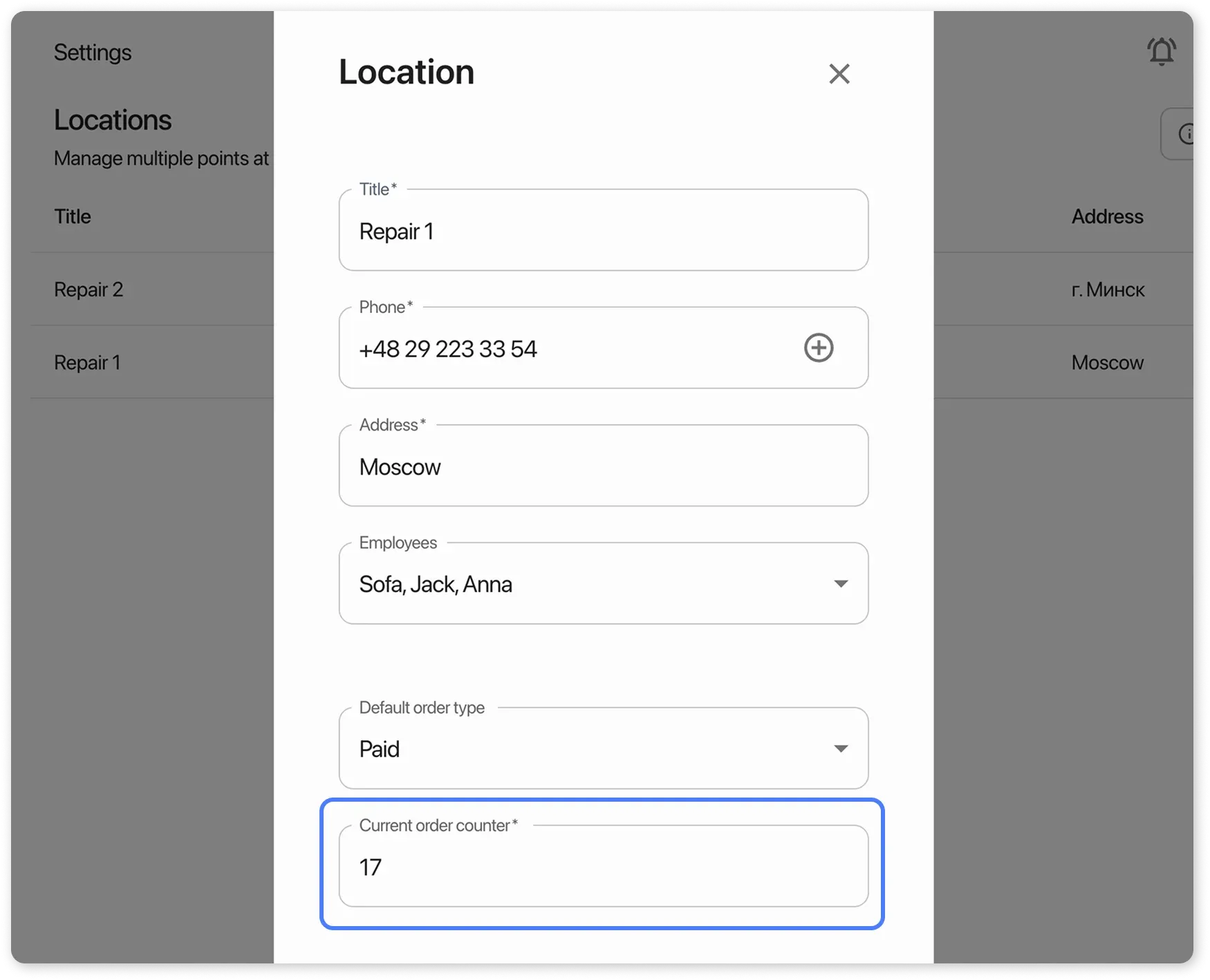
You can adjust the counter for new orders in Settings / Locations / Current Order Counter.
What happens if I set the “Current Order Counter” to 0?
Yes, this will cause problems:
- New order numbering will start from 1
- There will be duplicate order numbers
- Increased risk of confusion in accounting and documents
Identifying Order Numbers by Locations
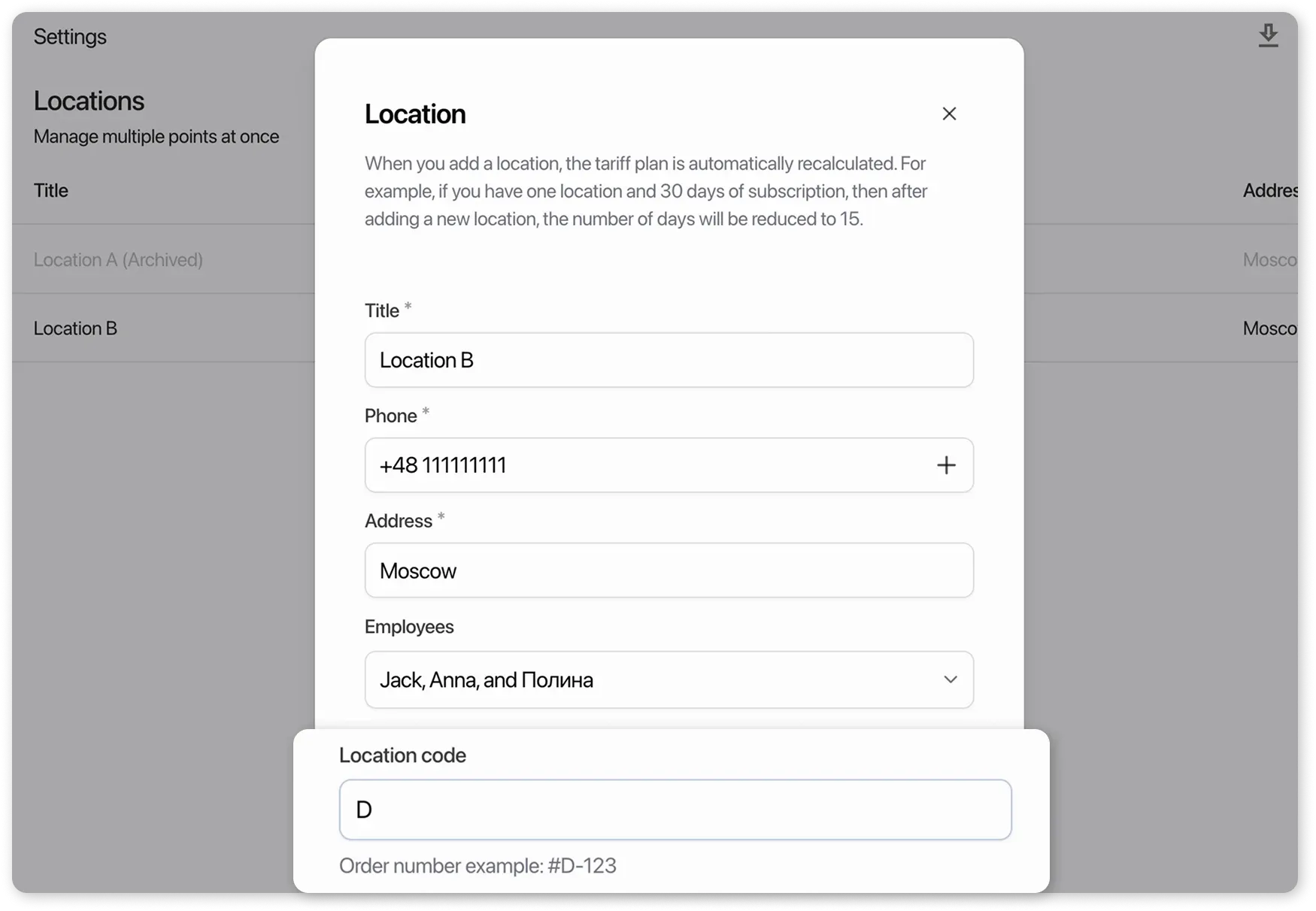
Section titled “Identifying Order Numbers by Locations”You can assign a code to each location, and all orders will have an individual indicator for easy differentiation.
How to do it:
- Go to Settings → Locations;
- Select the desired location card;
- In the “Location Code” field, enter a value;
- Repeat these steps for each location.
After setup, all new orders will be created with a number that includes the assigned location code.
Changing the Order Number Counter
Section titled “Changing the Order Number Counter”You can change the order number counter and set it to any desired value.
- Go to Settings → Locations and open the location card.
- In the “Current Order Counter” field, enter your number.
If you have multiple locations, repeat this action for each one. The next order will be created with the next sequential number.
For example, if the current counter is 174, the next order will be 175.