Stocktaking
In HelloClient, you can perform a full or partial stocktaking. There’s no need to select a separate mode — simply add the items you want to reconcile.
How to create a stocktaking
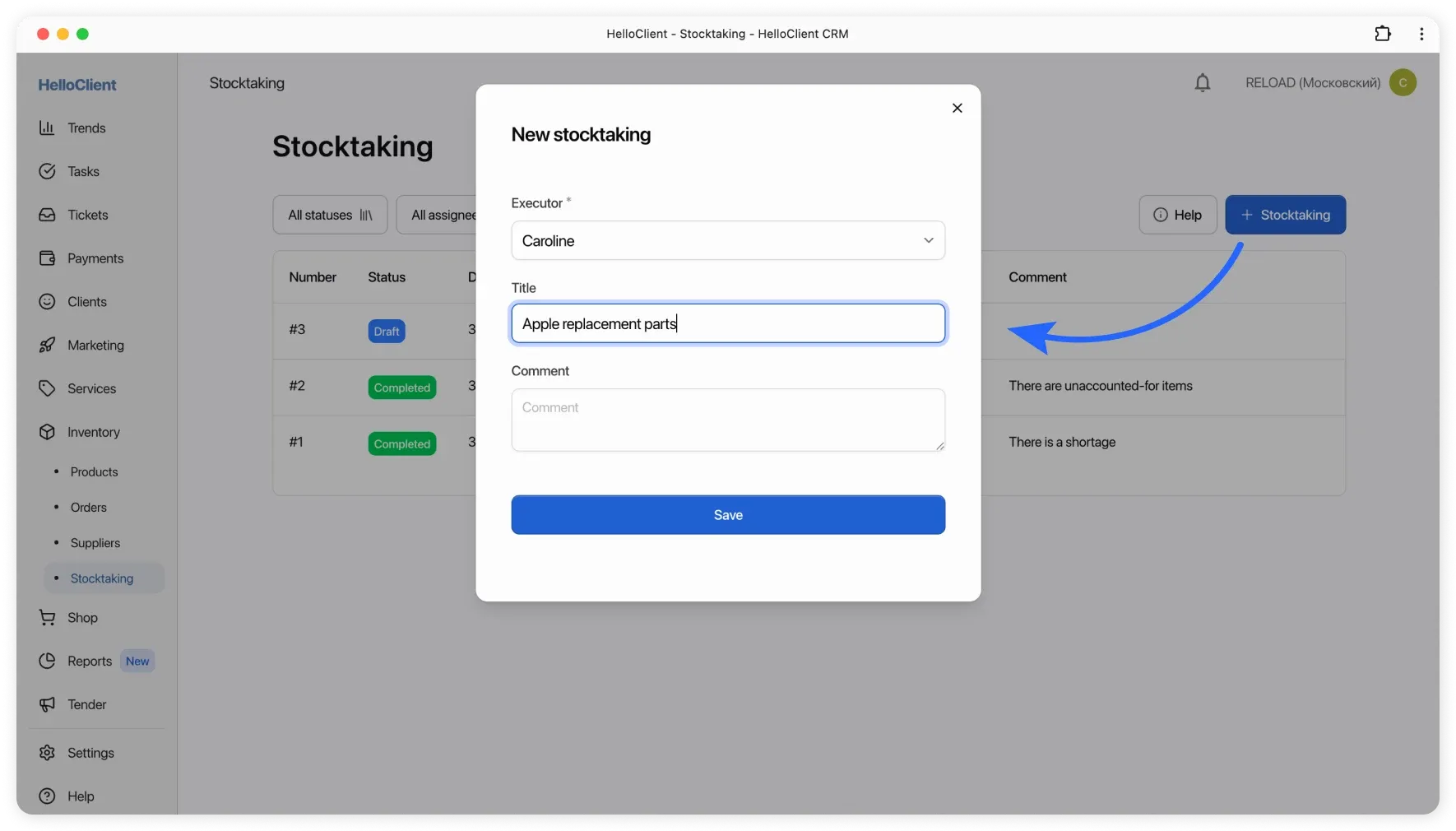
Section titled “How to create a stocktaking”- Go to Inventory → Stocktaking
- Click the + Stocktaking button
- Specify the assigned person
- Optionally, add a title and comment
After creation, the stocktaking opens in Draft status. In this status, you can:
- Change the stocktaking title, assigned person, or comment
- Pause work and resume later — changes are saved automatically
- Delete the stocktaking
How to conduct a stocktaking
Section titled “How to conduct a stocktaking”Add items
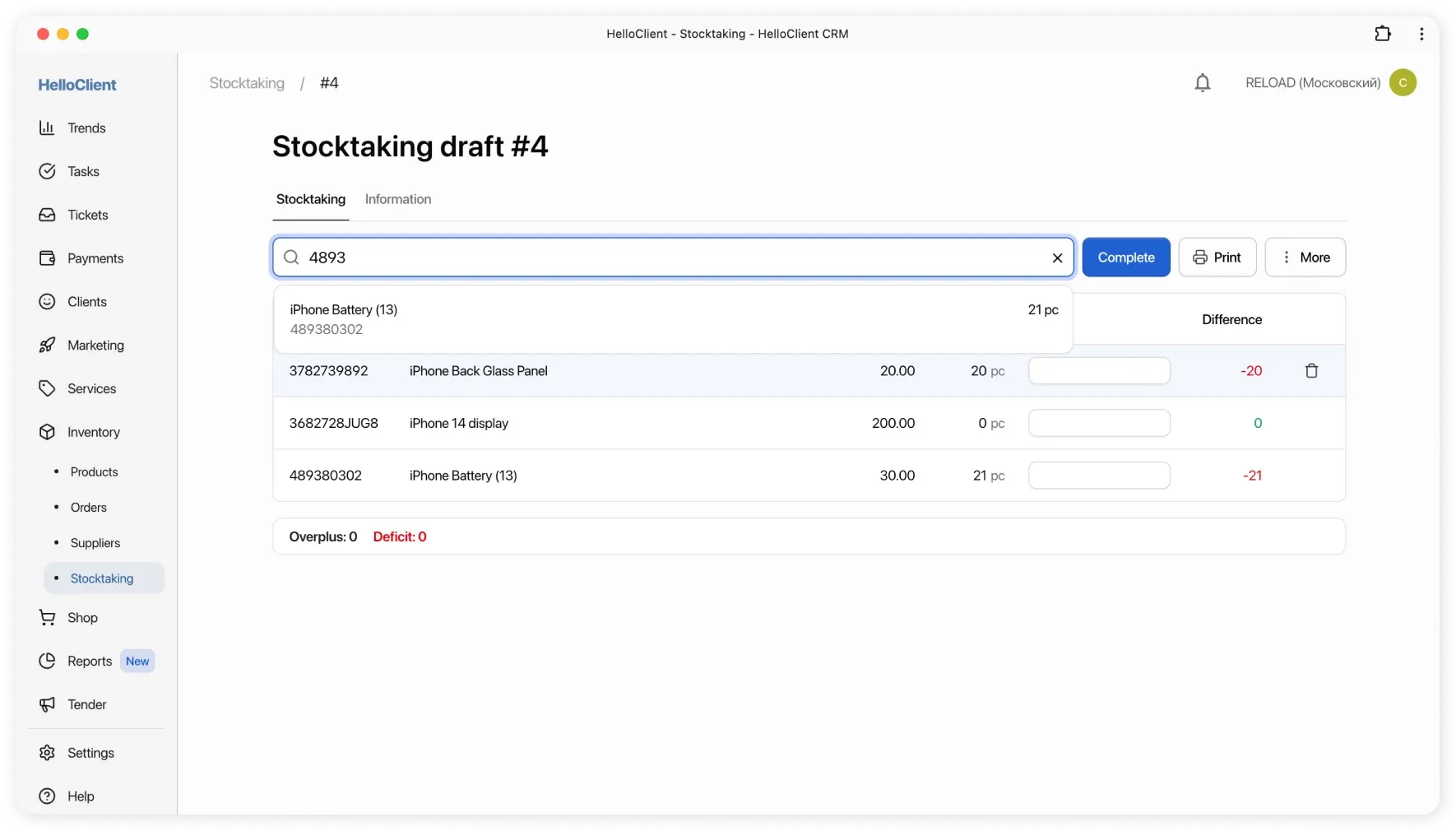
Section titled “Add items”You can add items by:
- Scanning the barcode with a scanner
- Using the search bar to find items by name or SKU
Enter the actual quantity
Section titled “Enter the actual quantity”You can specify the actual quantity by:
- Typing it in manually
- Scanning the item again — each scan increases the quantity by 1
Complete the stocktaking
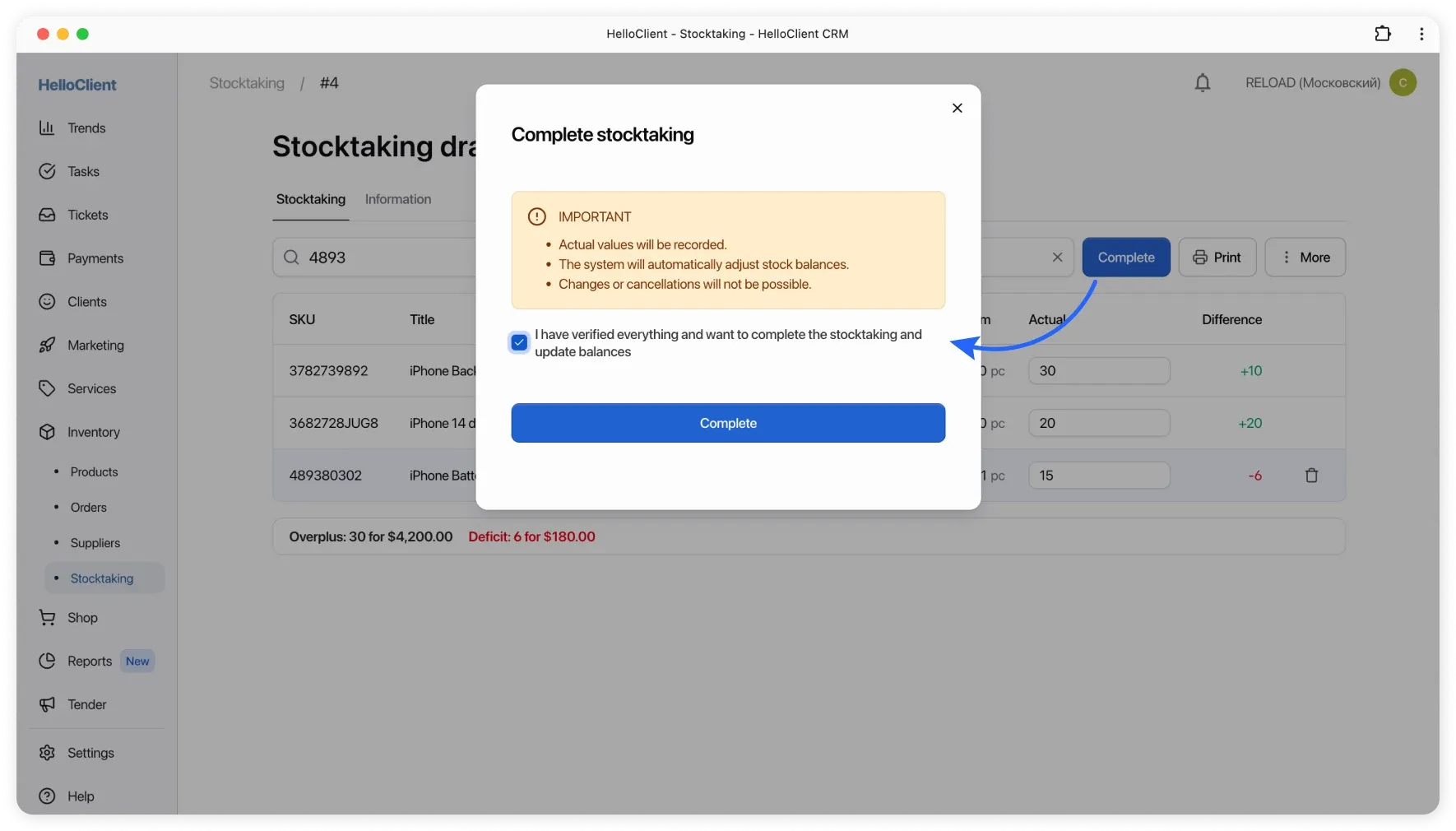
Section titled “Complete the stocktaking”After entering all actual quantities, carefully review the data and click Complete.
What happens after completion
Section titled “What happens after completion”- Item stock levels are automatically updated to match the actual quantities
- For each item, the system will automatically generate:
- A write-off entry — for shortages
- A stock receipt entry — for overages
Once completed, the document cannot be edited, and inventory changes cannot be reversed.
Item locking
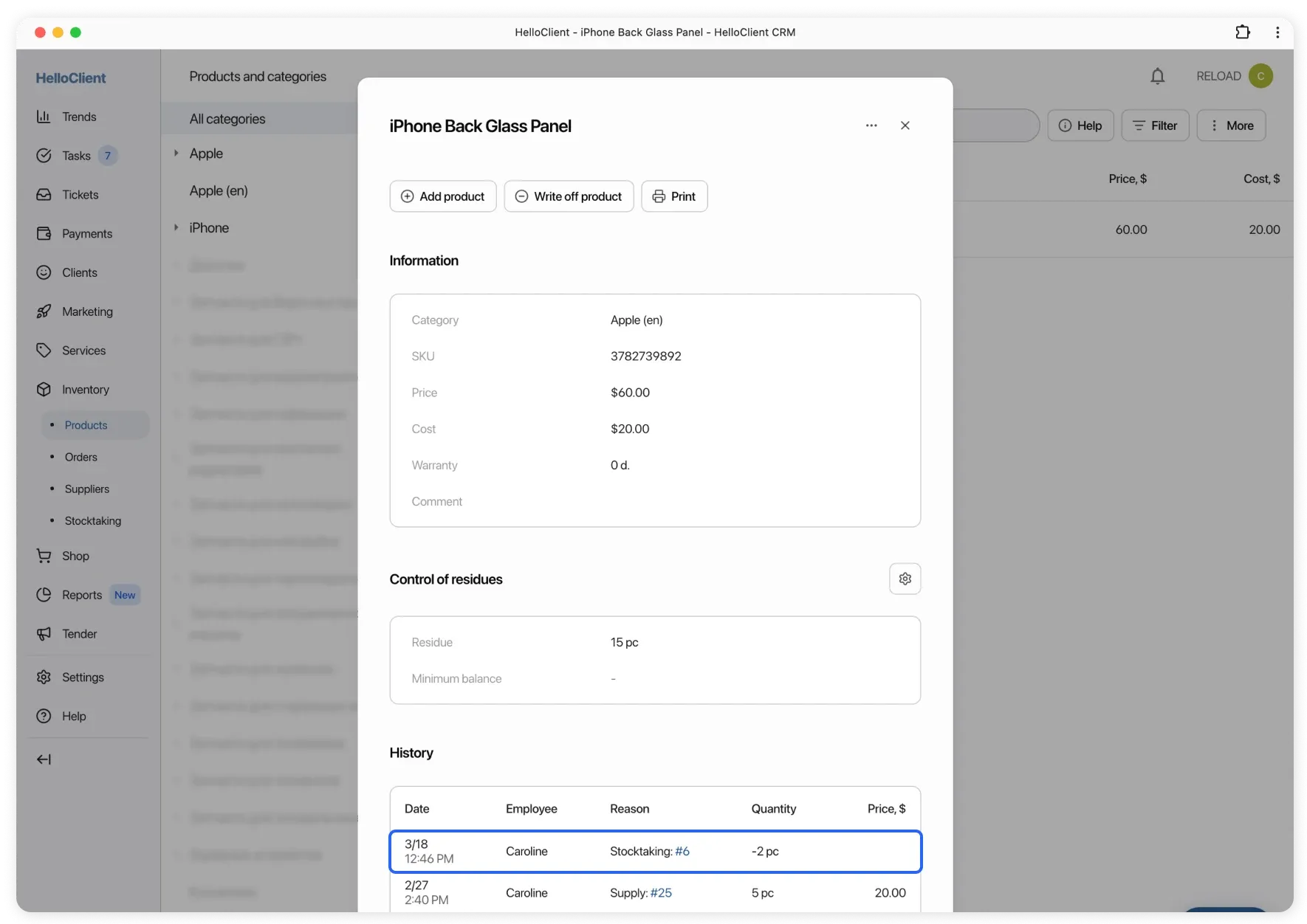
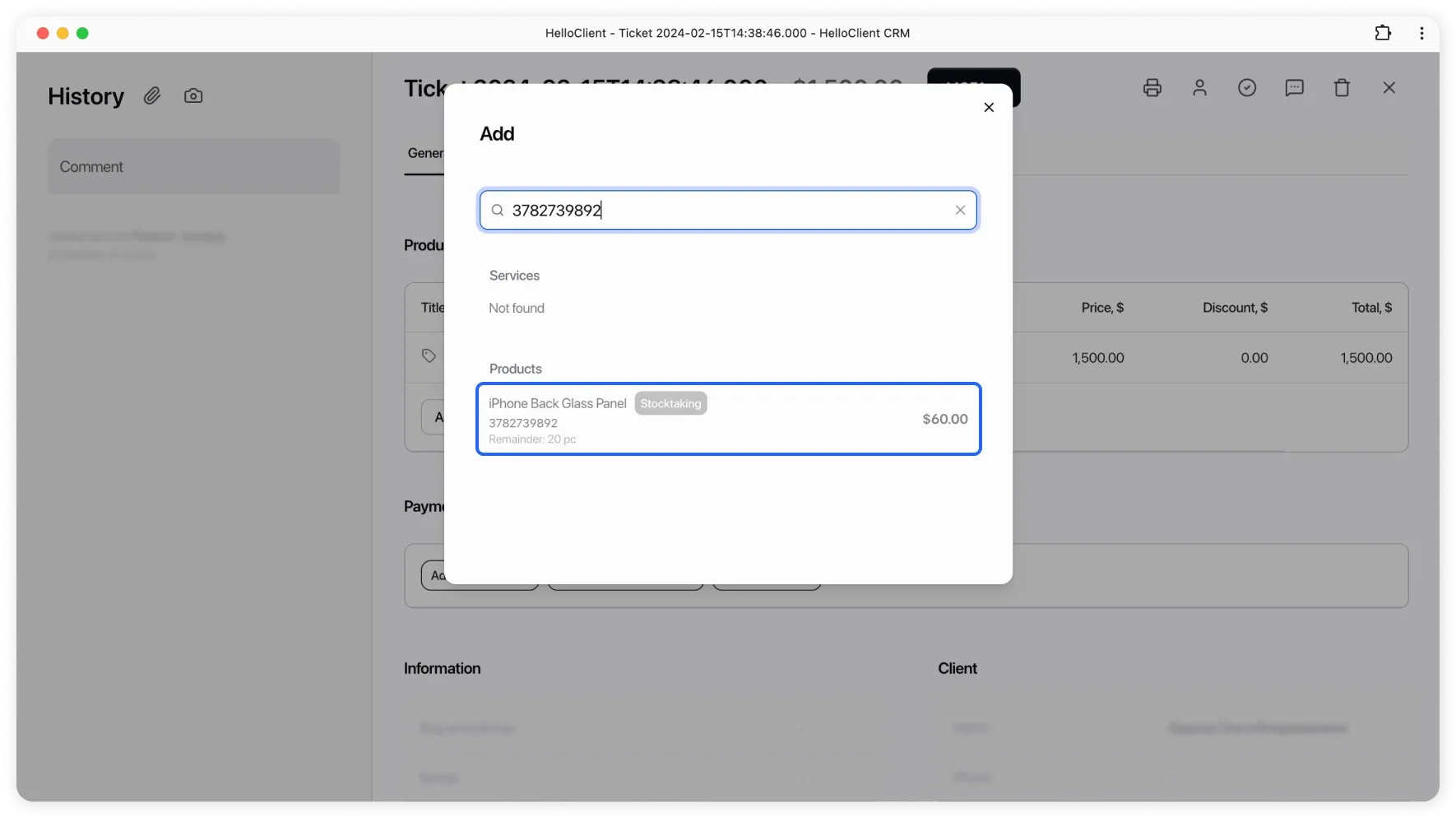
Section titled “Item locking”After an item is added to a stocktaking, it becomes locked until the stocktaking is completed or the item is removed from the document.
Locked items cannot be:
- Sold
- Added to an order
- Received into stock
- Written off
- Returned from an order/sale (processed as a return)
- Added to another stocktaking until the current one is completed
Common issues
Section titled “Common issues”Actual quantity not entered
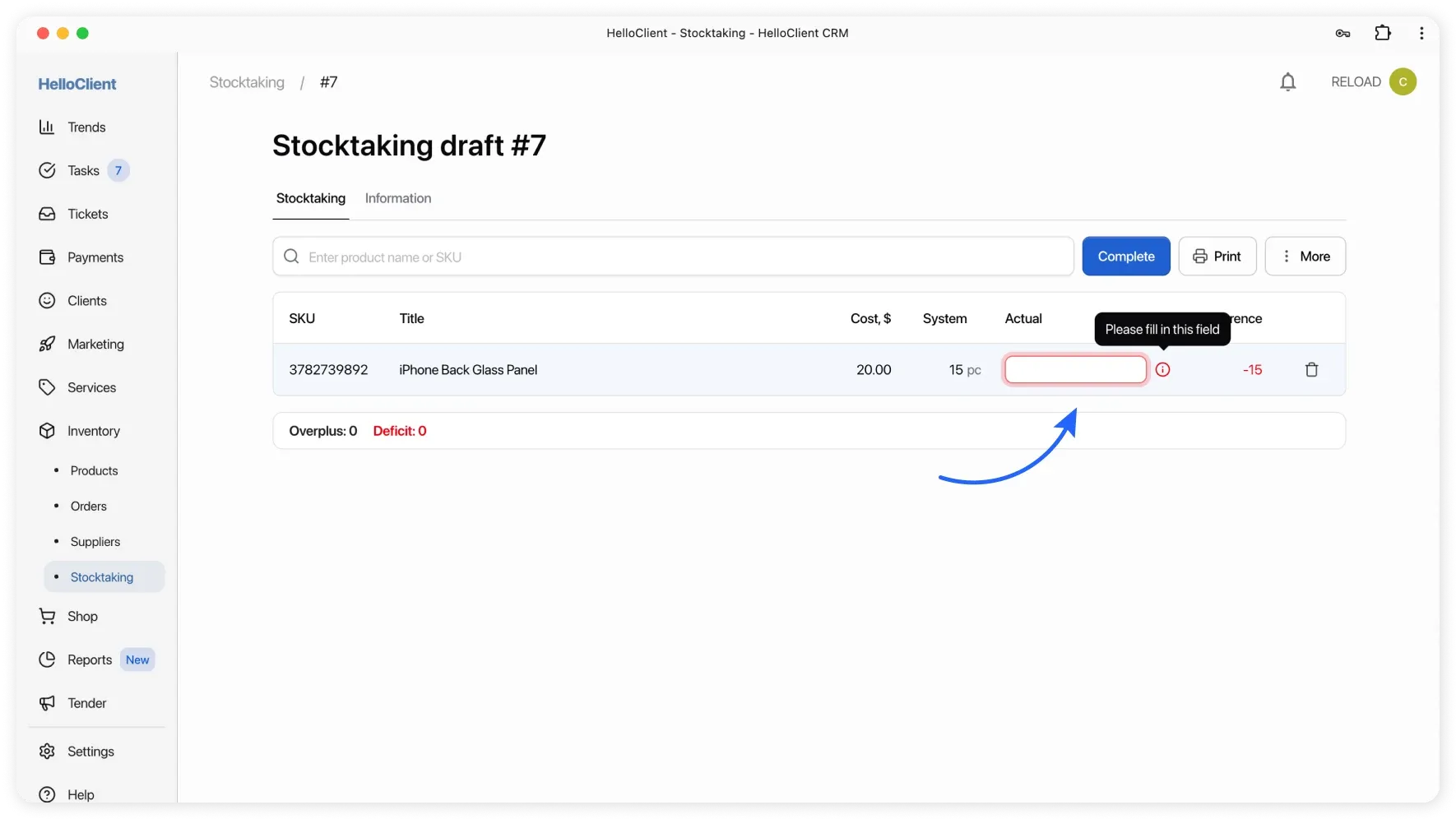
Section titled “Actual quantity not entered”If an item doesn’t have an actual quantity specified, you won’t be able to complete the stocktaking.
Enter the actual quantity for the item, or remove it from the stocktaking if you don’t plan to include it.
Item not found
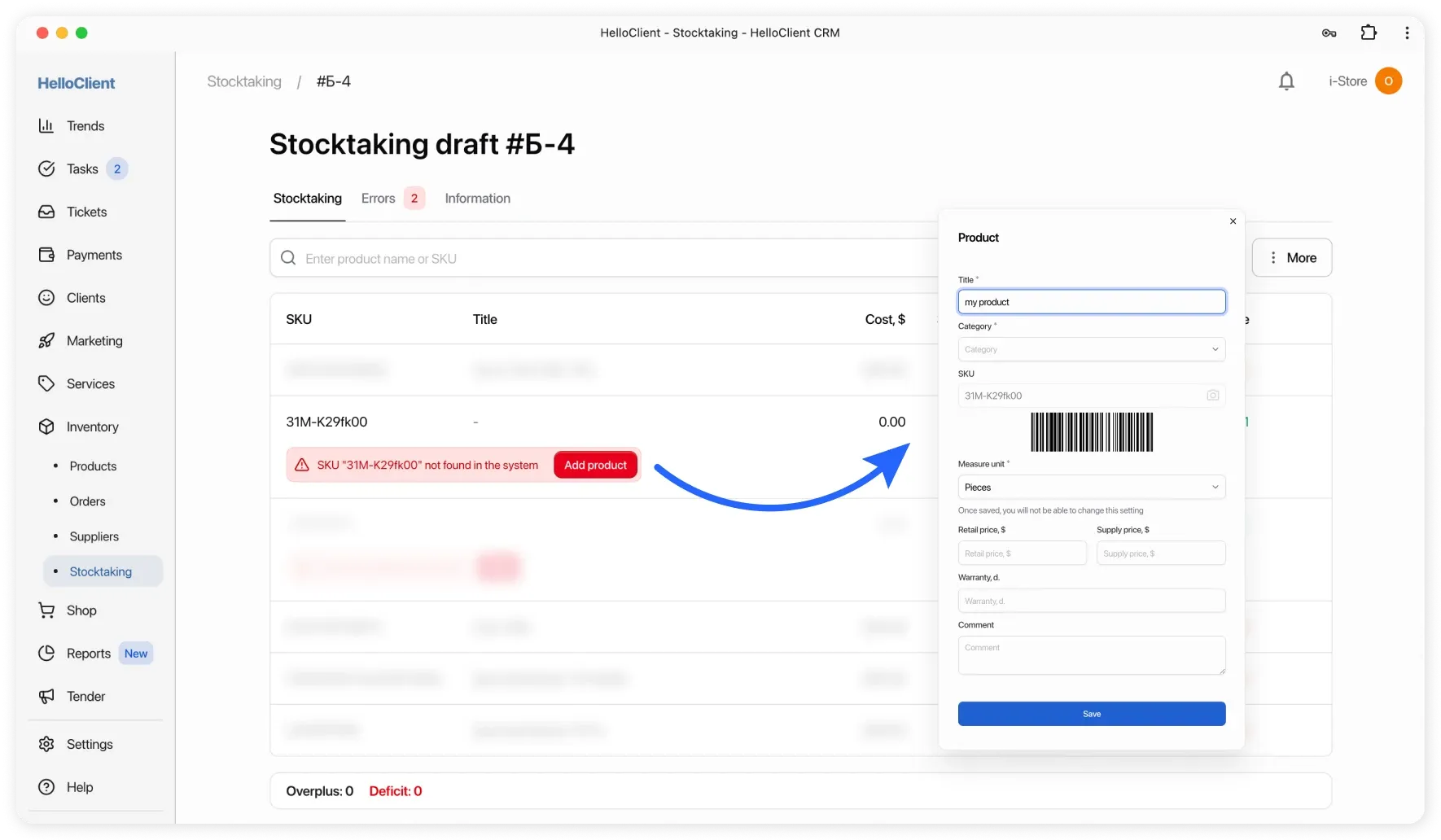
Section titled “Item not found”If you scan an item that doesn’t exist in your database, it will appear in the list with an error.
- Click the Add item button
- Fill in the item details and save it to your database
If you don’t want to track this item, simply remove it from the stocktaking.
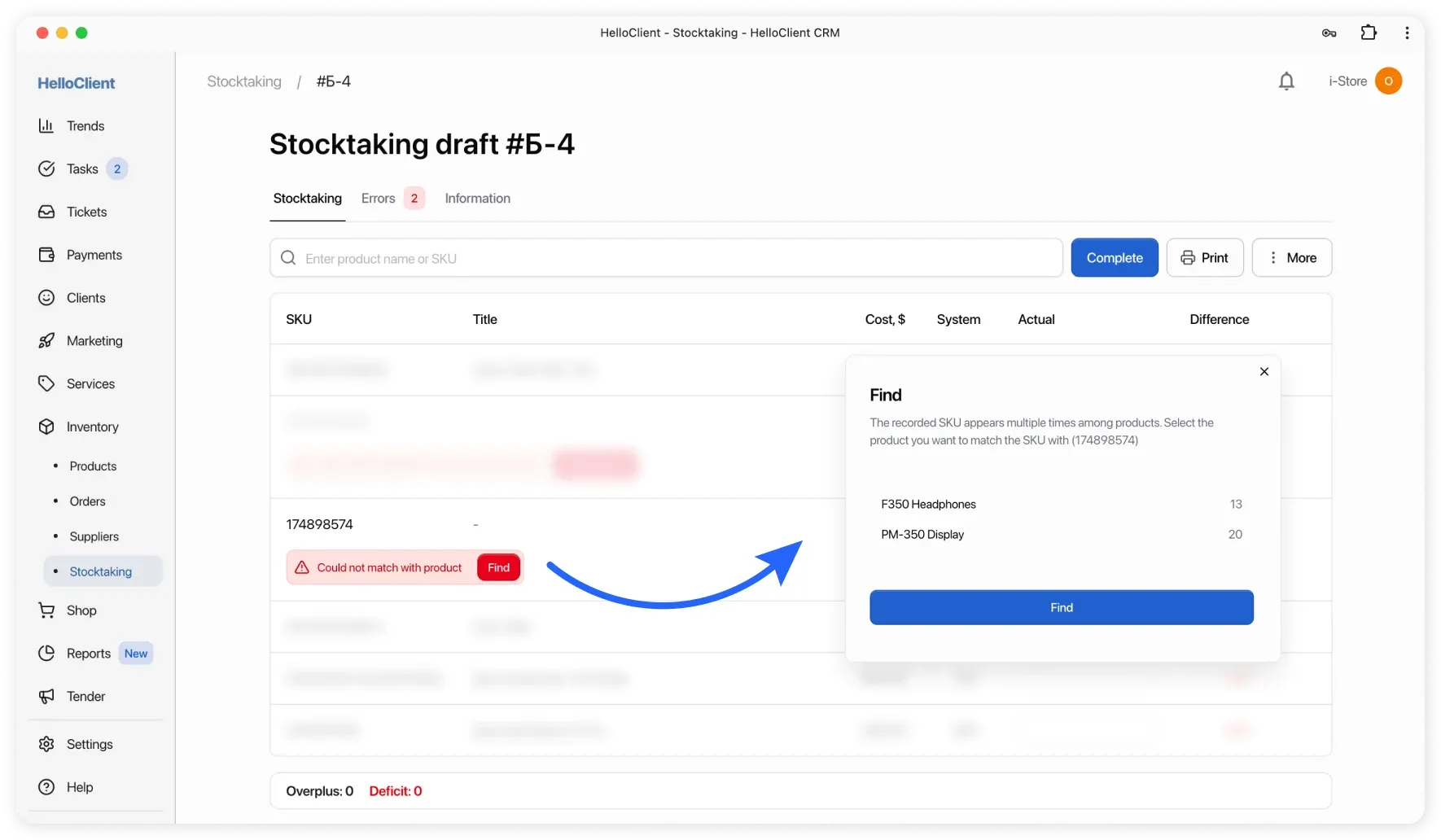
Duplicate SKU
Section titled “Duplicate SKU”If your database contains multiple items with the same SKU, the system won’t be able to determine which item you’re scanning.
In this case:
- The item will appear in the stocktaking with an error
- Click Find and select the correct item manually
This error won’t occur if you add items via search, since you select the exact product upfront.