Ways for client to leave a review
HelloClient provides 5 convenient ways for clients to leave a review.
1. QR code at the reception
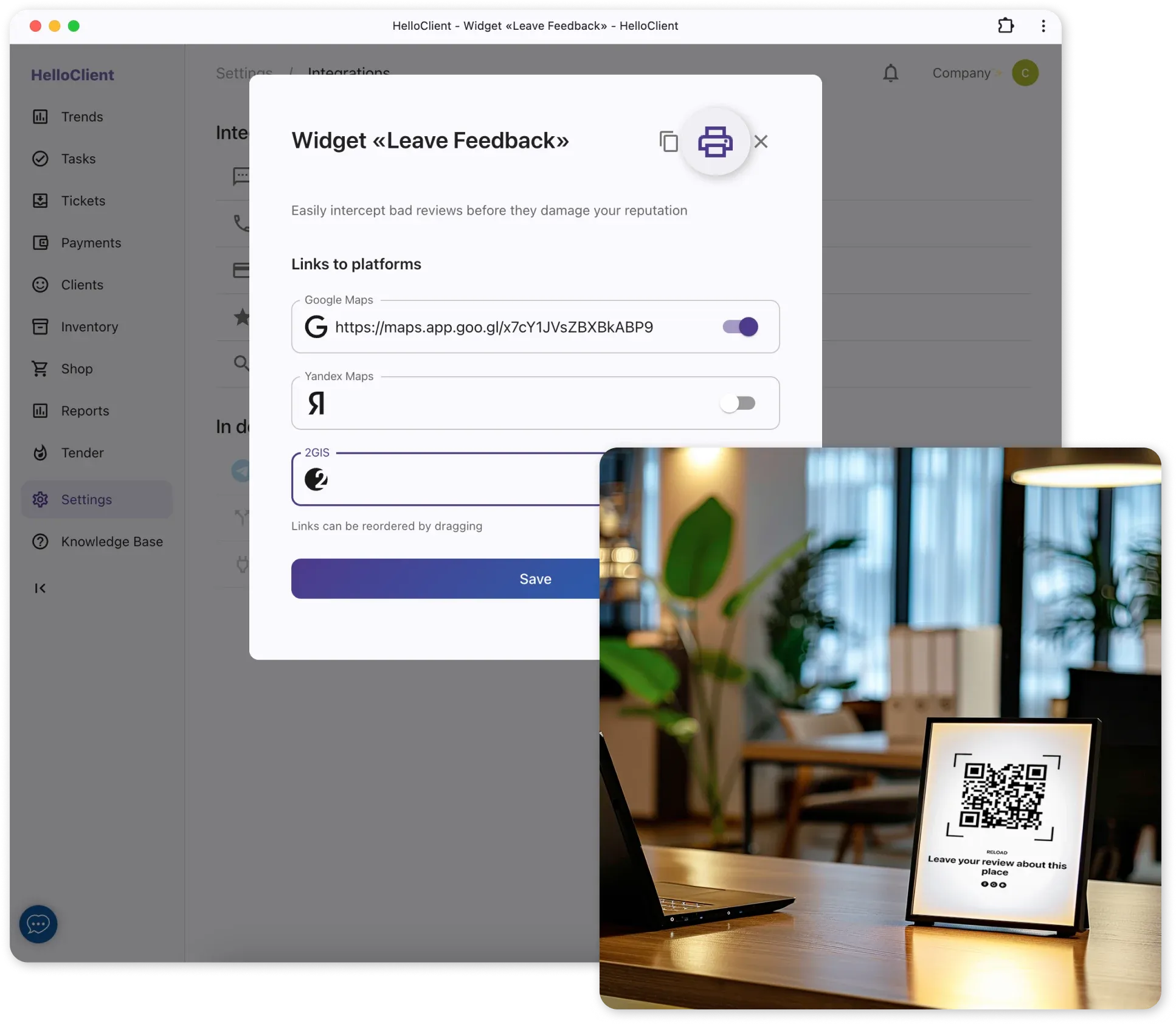
Section titled “1. QR code at the reception”- Go to Settings → Integrations → Widget “Leave a Review”.
- Print the QR code with a link to the review widget.
- Place the QR code in a visible area for clients.
The client scans the QR code and is immediately taken to the review form.
2. QR code in the documents
Section titled “2. QR code in the documents”- Go to Settings → Documents.
- Select the required document template.
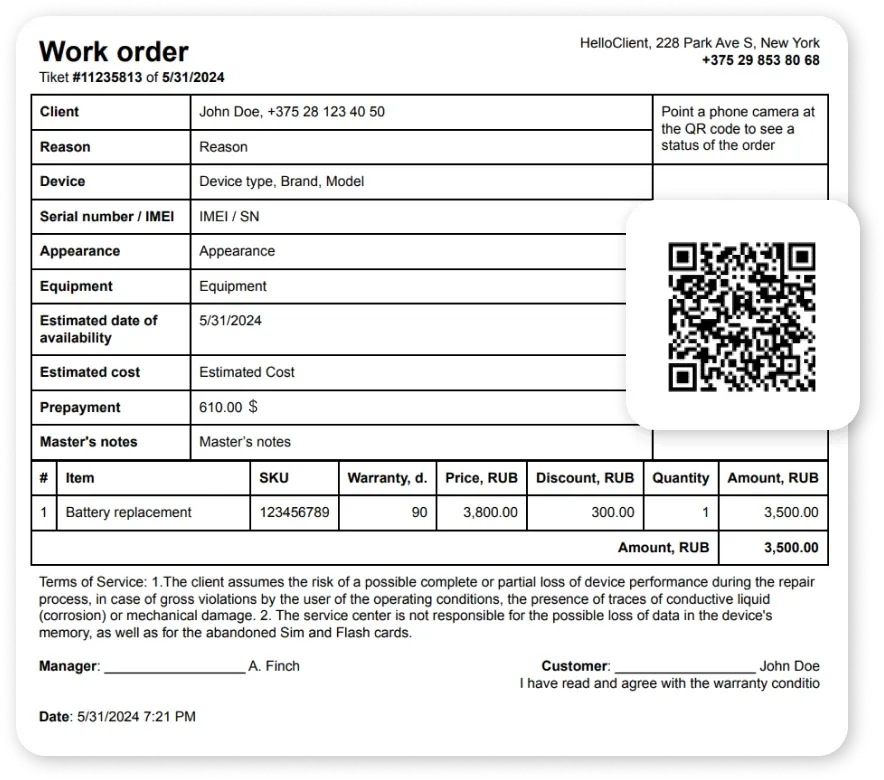
- Add the variable “Review link (QR)” to the template.
The document is handed to the client, and at any time they can scan the QR code and leave a review.
3. Personalized SMS
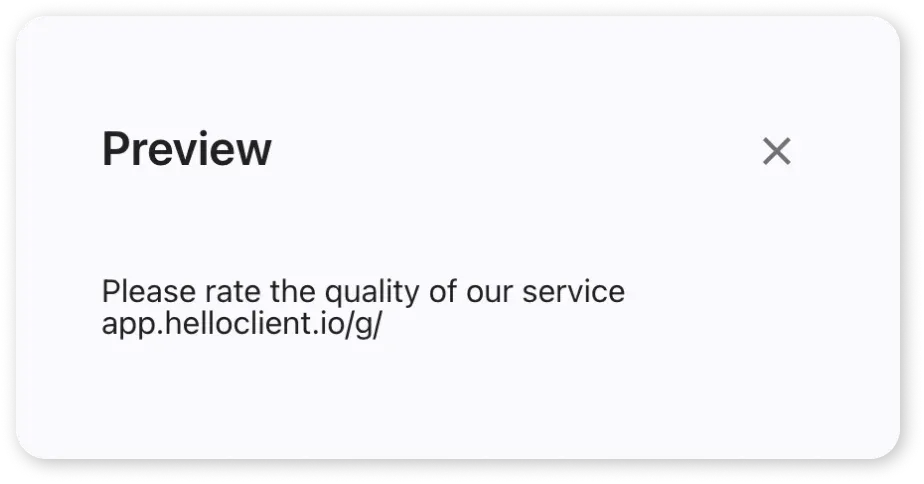
Section titled “3. Personalized SMS”If you have an active SMS provider integration, you can add a review link to the message template:
- Go to Settings → SMS notifications
- Create a template named “Client feedback”
- Create an SMS notification using the “Client feedback” template and configure it to be sent after the order status changes to “Closed”.
When the order status is changed to “Closed”, the client will automatically receive an SMS inviting them to leave a review. By following the link in the message, the client can submit a review.
4. Messenger message
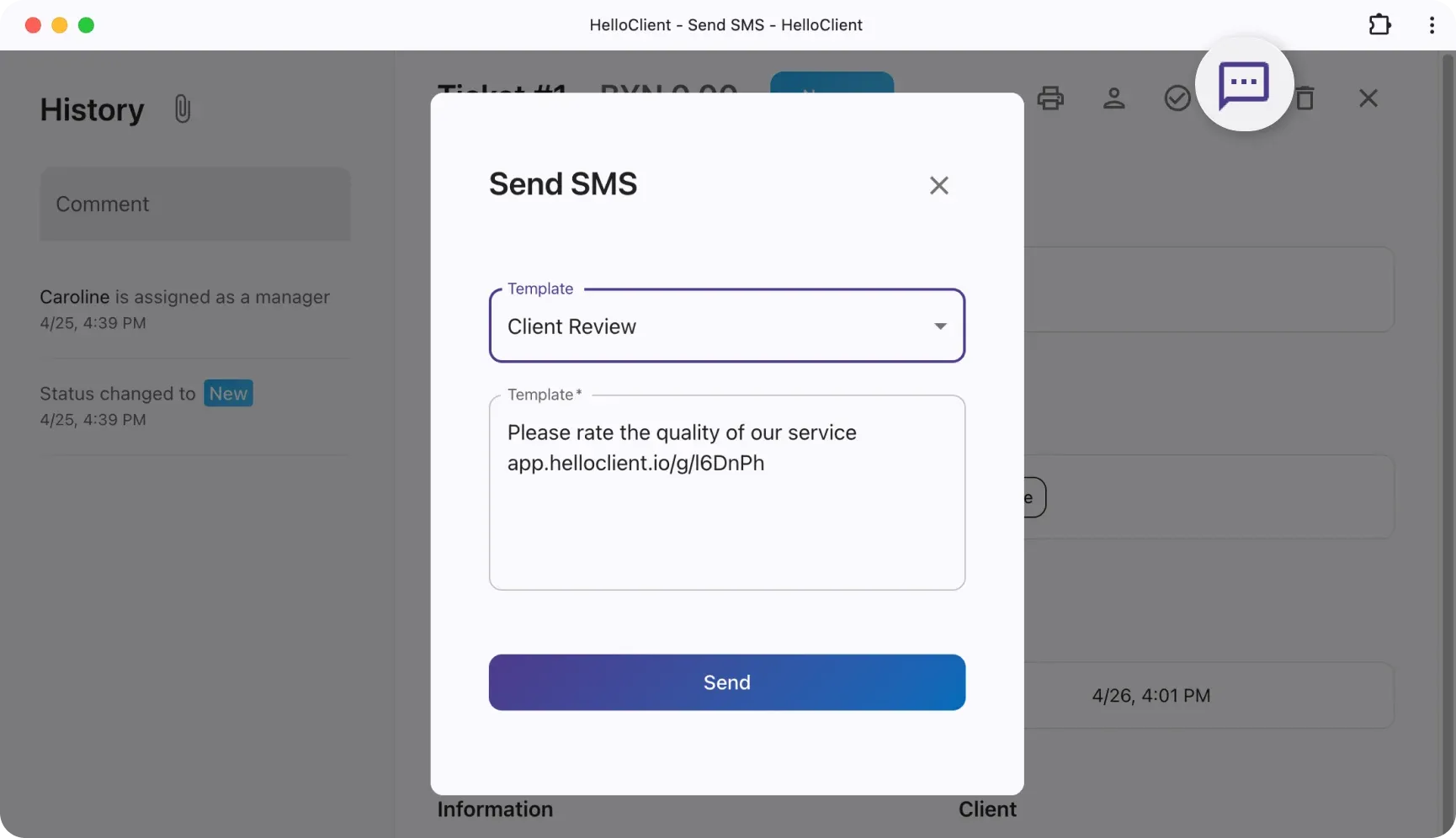
Section titled “4. Messenger message”- Copy the SMS notification template from the order
- Send it manually to the client via Telegram / WhatsApp / Viber
5. Email message
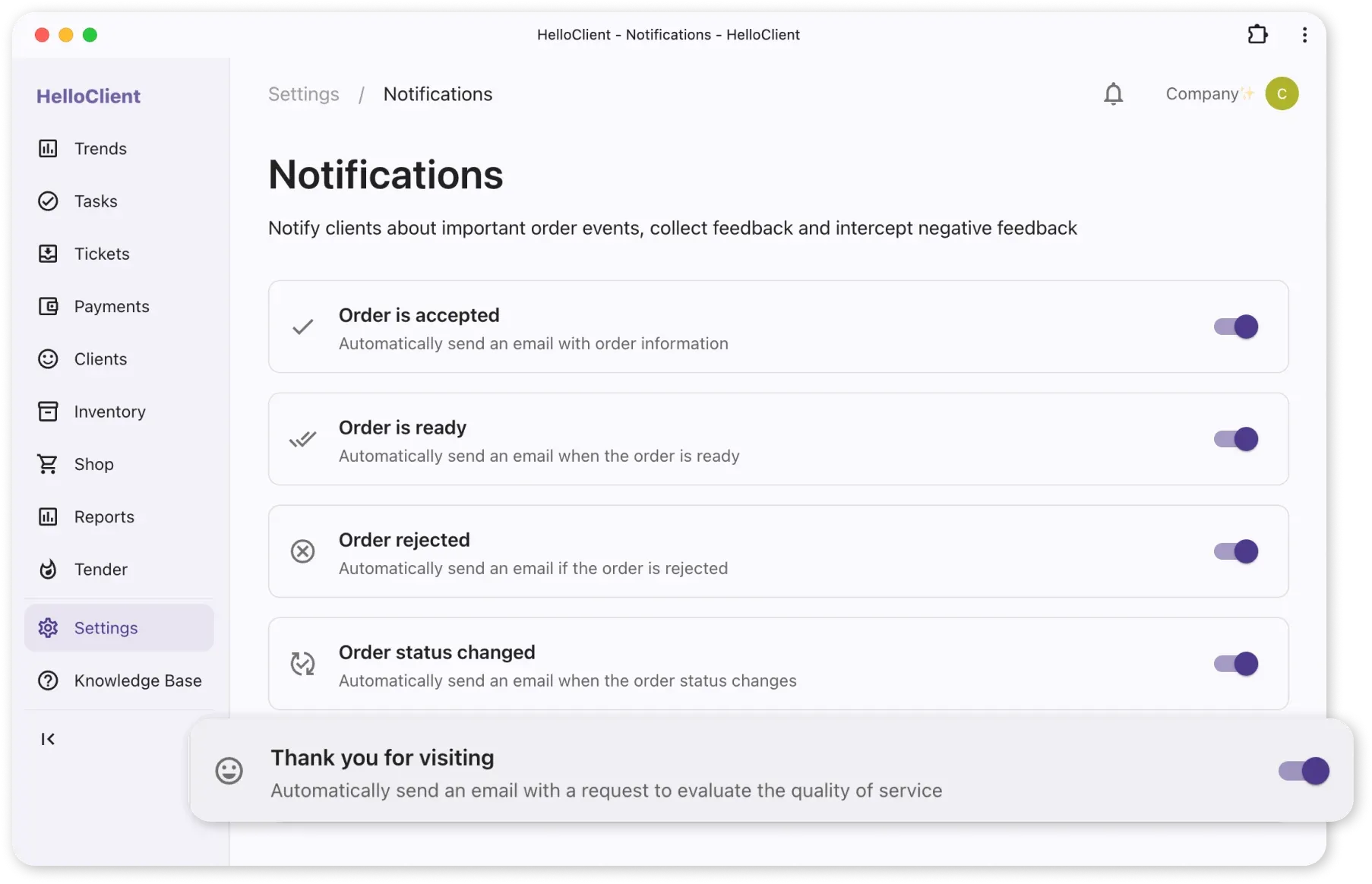
Section titled “5. Email message”- Go to Settings → Notifications
- Enable the “Thank you for visiting” notification — this is the one that sends the review link to the client
- Select a status from the “Closed successfully” group that will trigger the notification
- Optionally add a list of services and prices, and a personal message (for example, a discount on the next order)
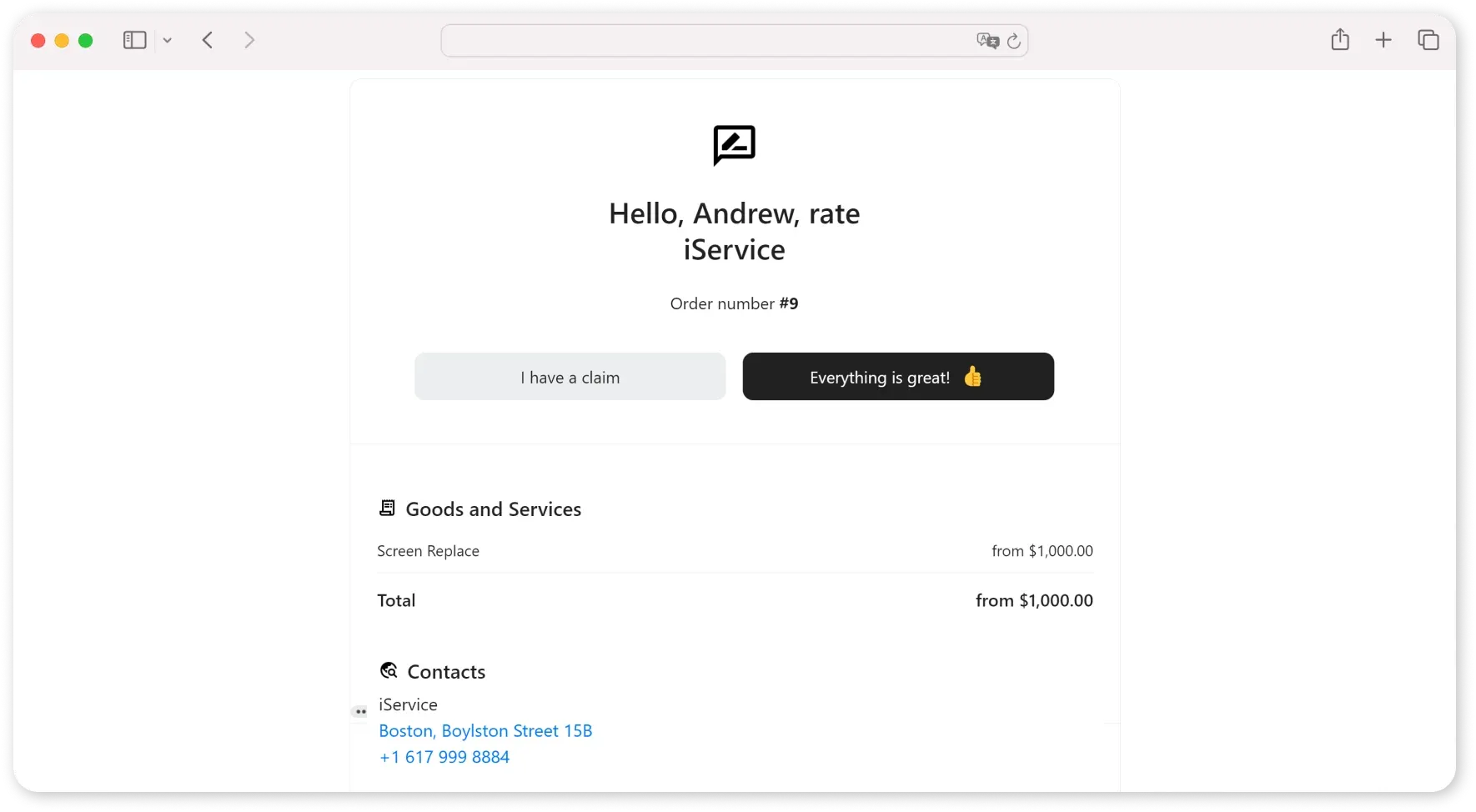
When the order is closed, the client will automatically receive an email inviting them to leave a review. By following the link in the email, the client can submit a review.