Salary accrual from order
In the order card, you can manually accrue salary to employees, track these accruals, and apply penalties.
«Salary» section in the order card
Section titled “«Salary» section in the order card”In the order card, in the «Salary» section, the following information is displayed:
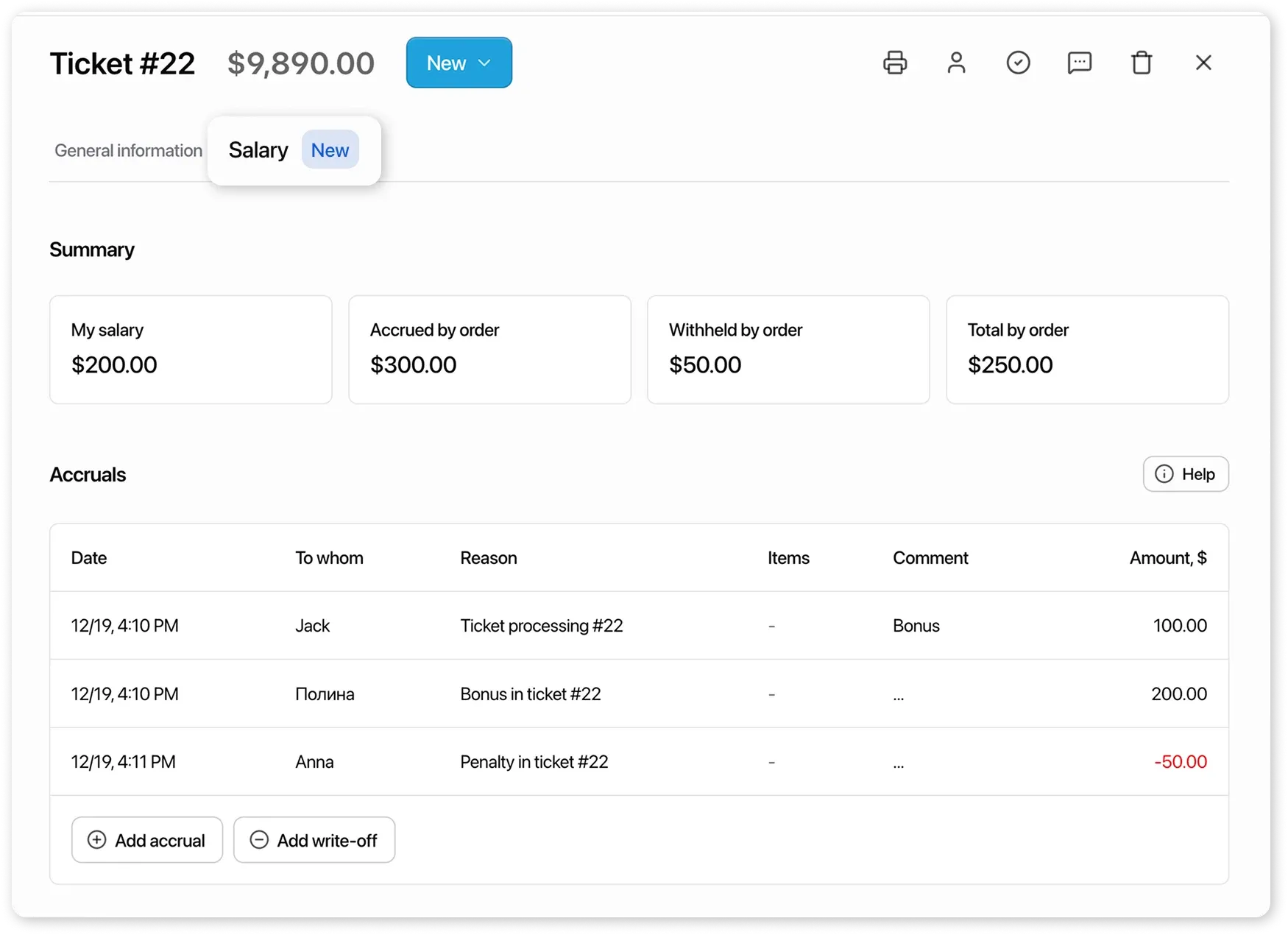
Metrics:
Section titled “Metrics:”- My salary — shows the user only their current salary for the order, including penalties (if any);
- Accrued by order — shows the total salary of all employees for the order excluding penalties;
- Withheld by order — shows the total amount of penalties for the order;
- Total by order — shows the total salary amount of all employees for the order.
«Accruals» table
Section titled “«Accruals» table”Contains the following information on system and manual accruals within the order:
- Accrual date;
- To whom — the employee who received the accrual;
- Reason (penalty, for a product, for a service, for order processing);
- Items — product or service name;
- comment — information entered when creating the accrual;
- Accrual amount.
How to accrue salary to an employee from the order card
Section titled “How to accrue salary to an employee from the order card”- Open the order and go to the “Salary” tab.
- Click “+ Add accrual”.
- Specify:
- payment reason:
- bonus;
- for a product in the order — accrual linked to a product in the order;
- for a service in the order — accrual linked to a service in the order;
- for order processing;
- the employee to whom the salary should be accrued;
- the accrual amount;
- comment — description of the accrual.
- payment reason:
- Click “Save”.
You can also apply a penalty instead of an accrual.
To do this, click “- Add write-off”.
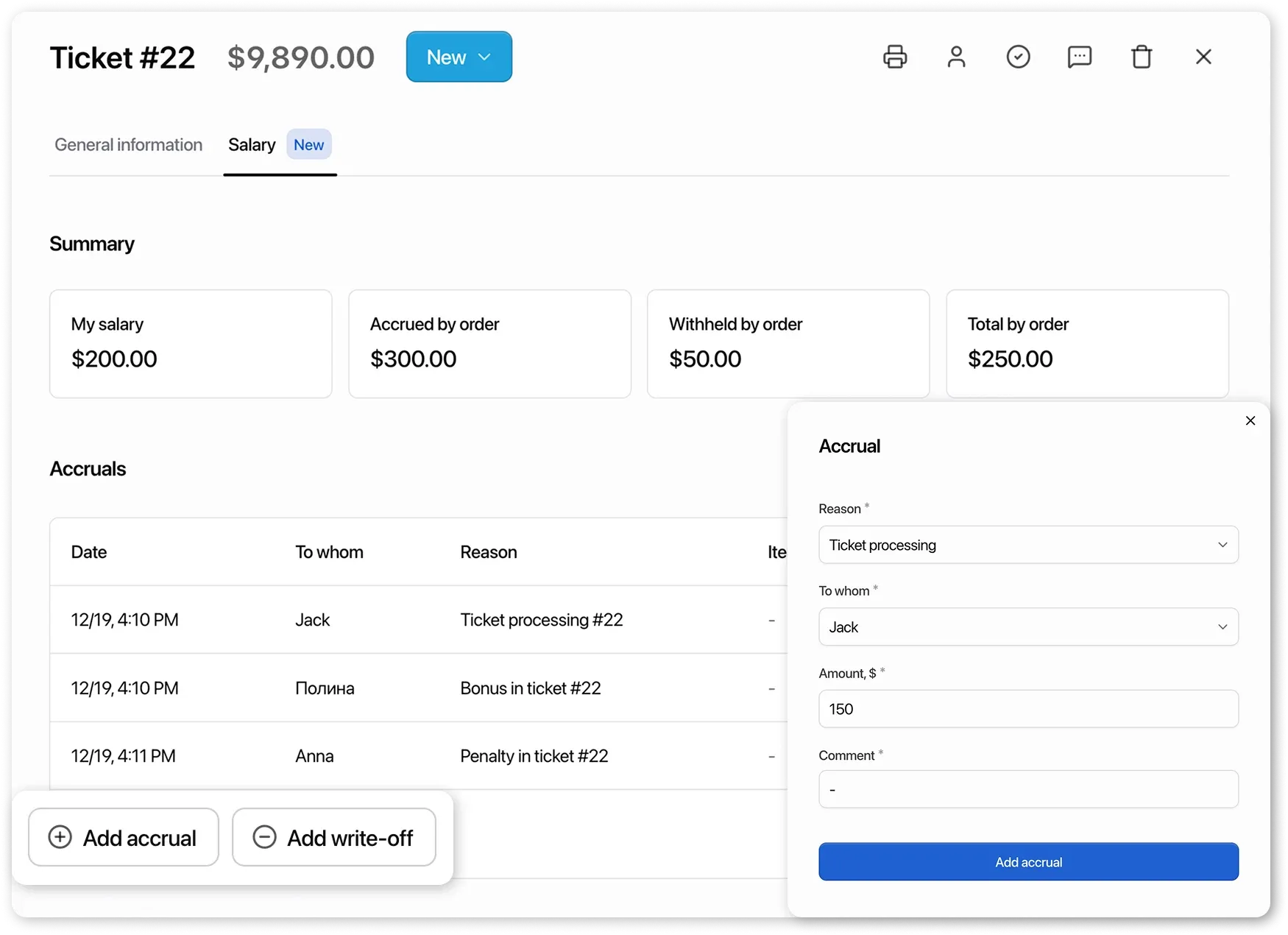
After saving, all accruals and penalties will appear in the “Accruals” table, as well as in the reports:
- Employee Salary Report
- “Profit by Orders” report — the “salary” column includes all accruals and deductions for the employee.
How manual accruals from an order interact with system accruals from an employee or service card
Section titled “How manual accruals from an order interact with system accruals from an employee or service card”-
Manual accruals can be added at any order status; system accruals are applied automatically when the order status changes.
-
Manual accruals appear in the recorded accruals table and reports immediately after creation, while system accruals appear after the order is moved to a status that triggers salary accrual.
-
If a manual accrual duplicates a system accrual, for example:
Employee Anna is assigned as the service performer.
The service card specifies a performer reward of $150.
The performer is manually accrued 200 RUB for the same service.The system accrual of $150 will be canceled, and the employee will receive the manual accrual of $200.
How to delete an accrual
Section titled “How to delete an accrual”The deletion process depends on the order status.
In an open order
Section titled “In an open order”When the order is in an active status, accruals can be deleted directly:
- Open the accrual card in the order and delete it;
- After deletion, the accrual disappears from the salary report;
- The employee will receive only the system accrual from the employee or service card (if any).
In a closed order
Section titled “In a closed order”If the order is already closed:
- The accrual can only be deleted from the report;
- When deleted, it is also excluded from recorded accruals in the order card, the salary report, and is not included in profit calculations.