Changing the order Date
Sometimes, due to a heavy workload, it’s not possible to close an order on time. As a result, the order is closed later than planned, which can lead to errors in payment records and reports — they will display incorrect data.
To change the order creation or closure date:
Section titled “To change the order creation or closure date:”-
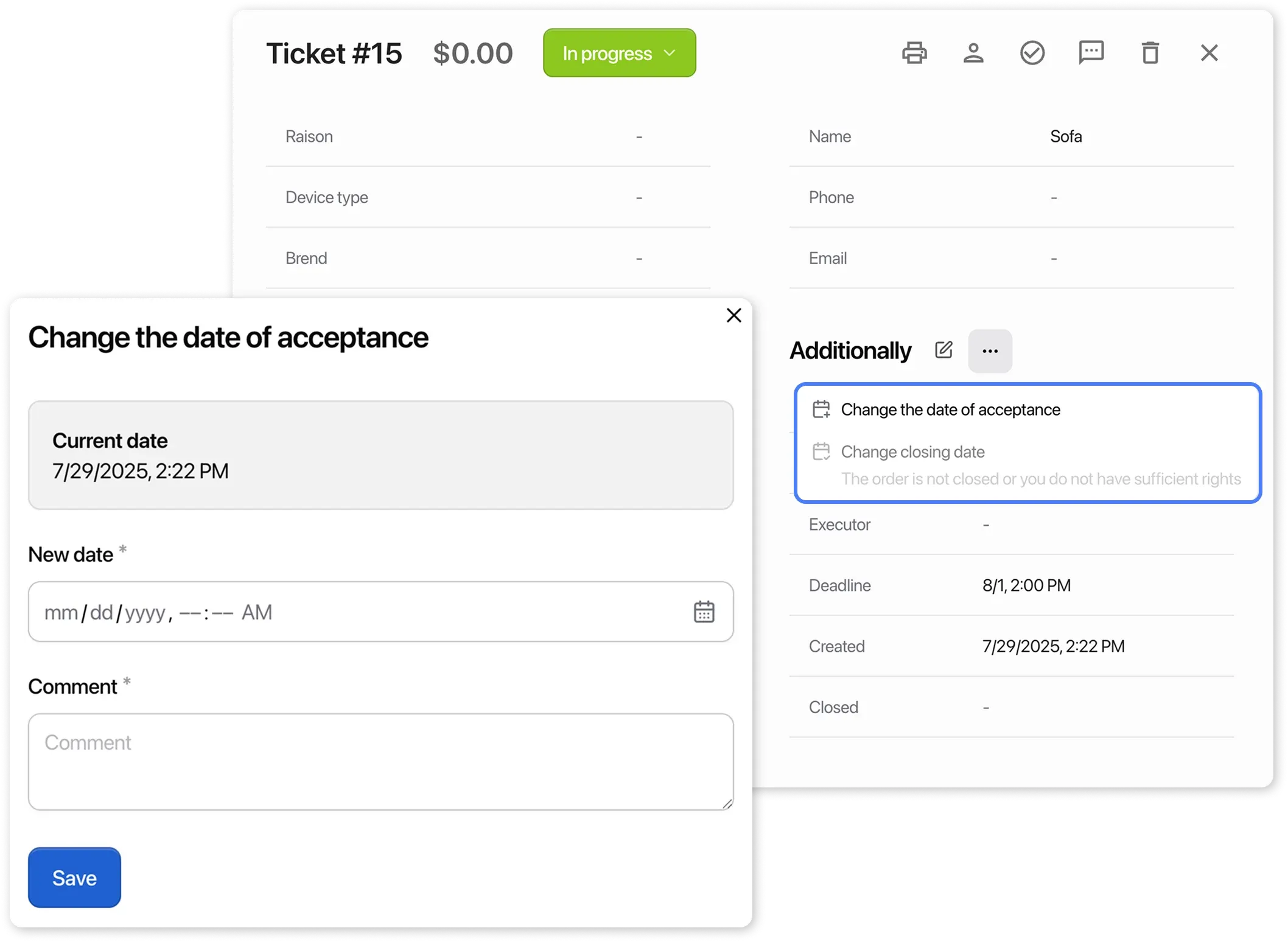
Go to the order card and open the “Additional” section.
-
Click the three dots in the upper-right corner:
- “Change creation date”
- “Change closure date”
-
In the popup window, edit the “Order creation date” and/or “Order closure date” fields.
Dates are available up to 1 month in the past from the current date. Future dates are not allowed.
-
Provide a reason for the change in the comment field and save the changes.
Where to view changes?
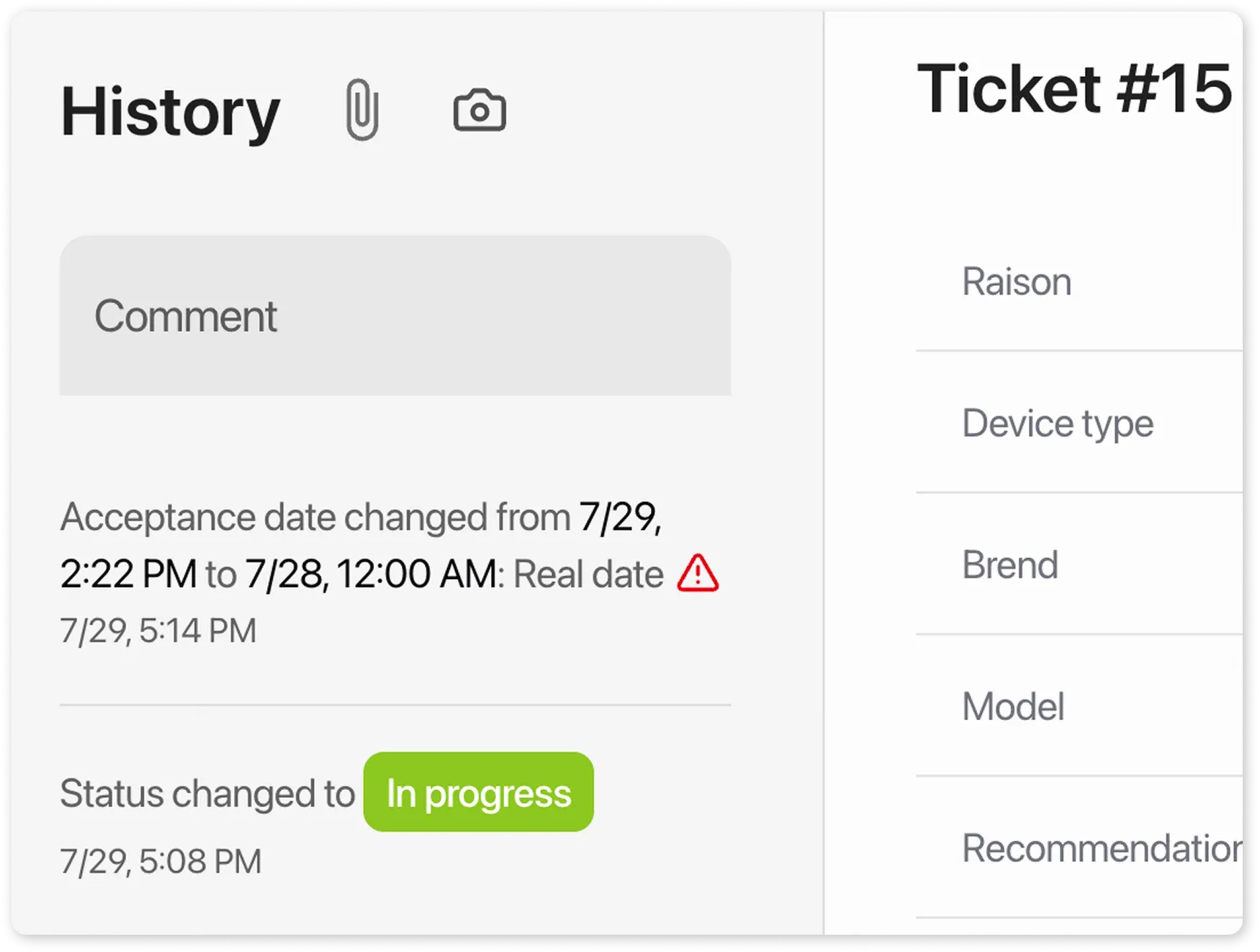
Section titled “Where to view changes?”In the “Additional” section, an icon will appear next to the date, indicating that it has been modified.
In the order history: you’ll see the date of the change, the action taken, the comment, and the employee’s name (hover over the entry to view it).