Employee Salary Management
Frequently Asked Questions
Section titled “Frequently Asked Questions”How is service-based salary calculated?
Accrual conditions:
- Service added to order
- Performer (employee) assigned
- Order moved to status that triggers salary accrual
Accrual happens automatically when all conditions are met
How to add fixed salary?
- Go to Employees section
- Select employee and click ”+ Bonus”
- In popup:
- Enter salary amount
- Type “Salary” in “Comment” field
- Save operation
Result:
- Amount appears in reports
- Employee balance updates automatically
- Accrual appears in monthly payroll
Where to view employee earnings?
In Reports > Employees > Salary
You can open employee card to see all monthly accruals.
HelloClient CRM enables comprehensive salary accounting for employees.
Salary Configuration Methods
Section titled “Salary Configuration Methods”- Percentage-based accruals in the employee profile;
- Percentage or fixed-amount accrual from a service added to an order or sale;
- Manual salary accruals from the order card;
- Bonus and penalty system.
Percentage-Based Accruals in Employee Card
Section titled “Percentage-Based Accruals in Employee Card”To configure percentages, you need to:
- Go to Settings > Employees;
- Open the employee profile;
- Go to the “Salary” section;
- Specify the required percentages in the relevant fields and save the changes.
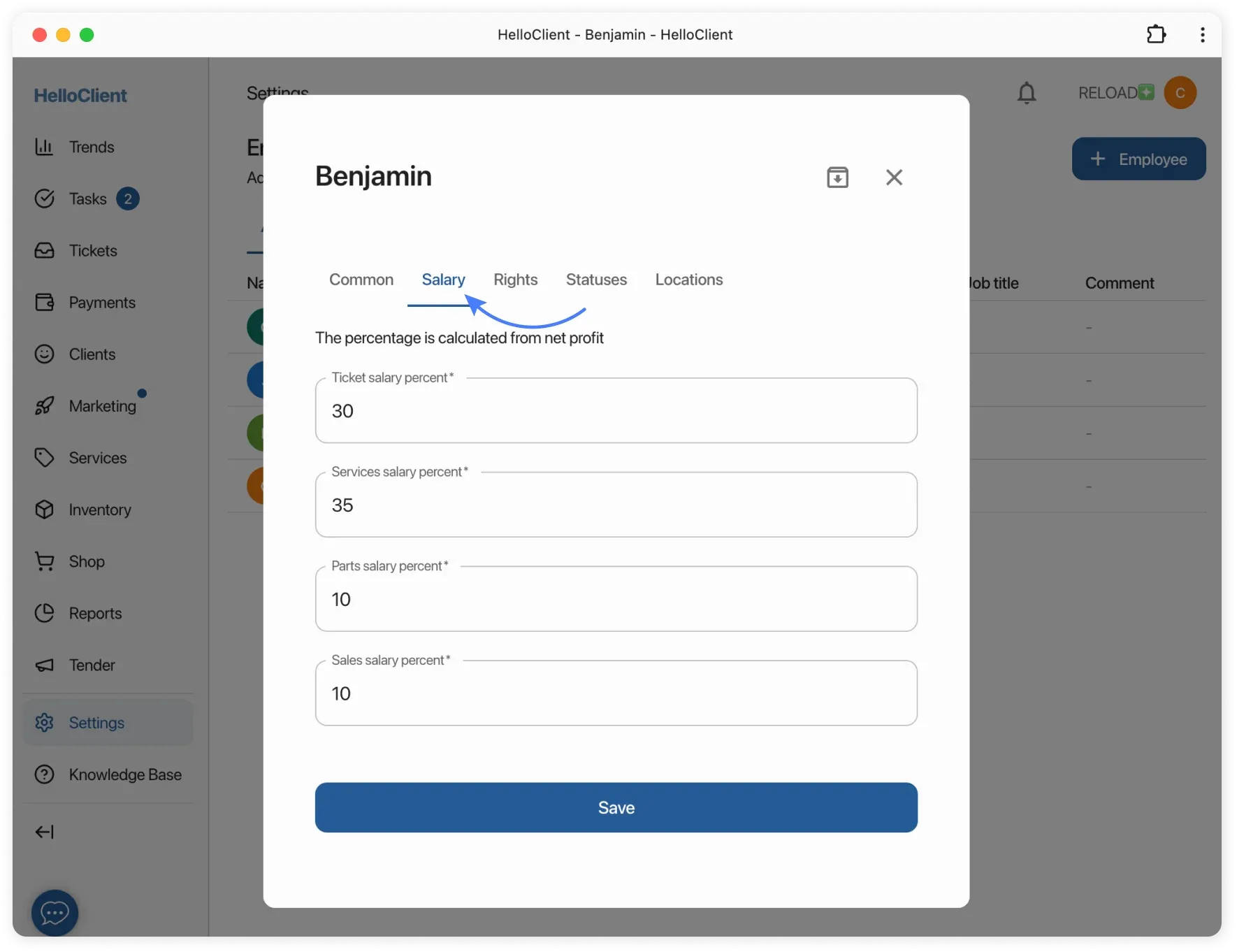
How accruals work:
Order salary percent
Section titled “Order salary percent”- When employee creates order under their account, they’re considered manager
- System accrues percentage for all services/products in order
Example: I created order in my account with "Order salary percent" set - I'll receive accrual.
Service salary percent
Section titled “Service salary percent”- When creating order, select performer
- System calculates and accrues percentage to performer for service
- Verify performer name when adding services/products - affects salary
- Performer can be changed in order
Example: I'm assigned as performer with "Service salary percent" set - I'll receive accrual.
Part salary percent
Section titled “Part salary percent”- System calculates and accrues percentage for products/consumables from inventory
Example: I added product to order with "Service salary percent" set - I'll receive accrual.
Sales salary percent
Section titled “Sales salary percent”- System calculates and accrues percentage for products sold through shop
Example: I sold product in "Shop" module with "Sales salary percent" set - I'll receive accrual.
Percentage or Fixed Amount per Service in Order
Section titled “Percentage or Fixed Amount per Service in Order”To configure this:
- Go to the Services section;
- Open the service card — “Executor Reward” block;
- Specify a percentage or a fixed amount.
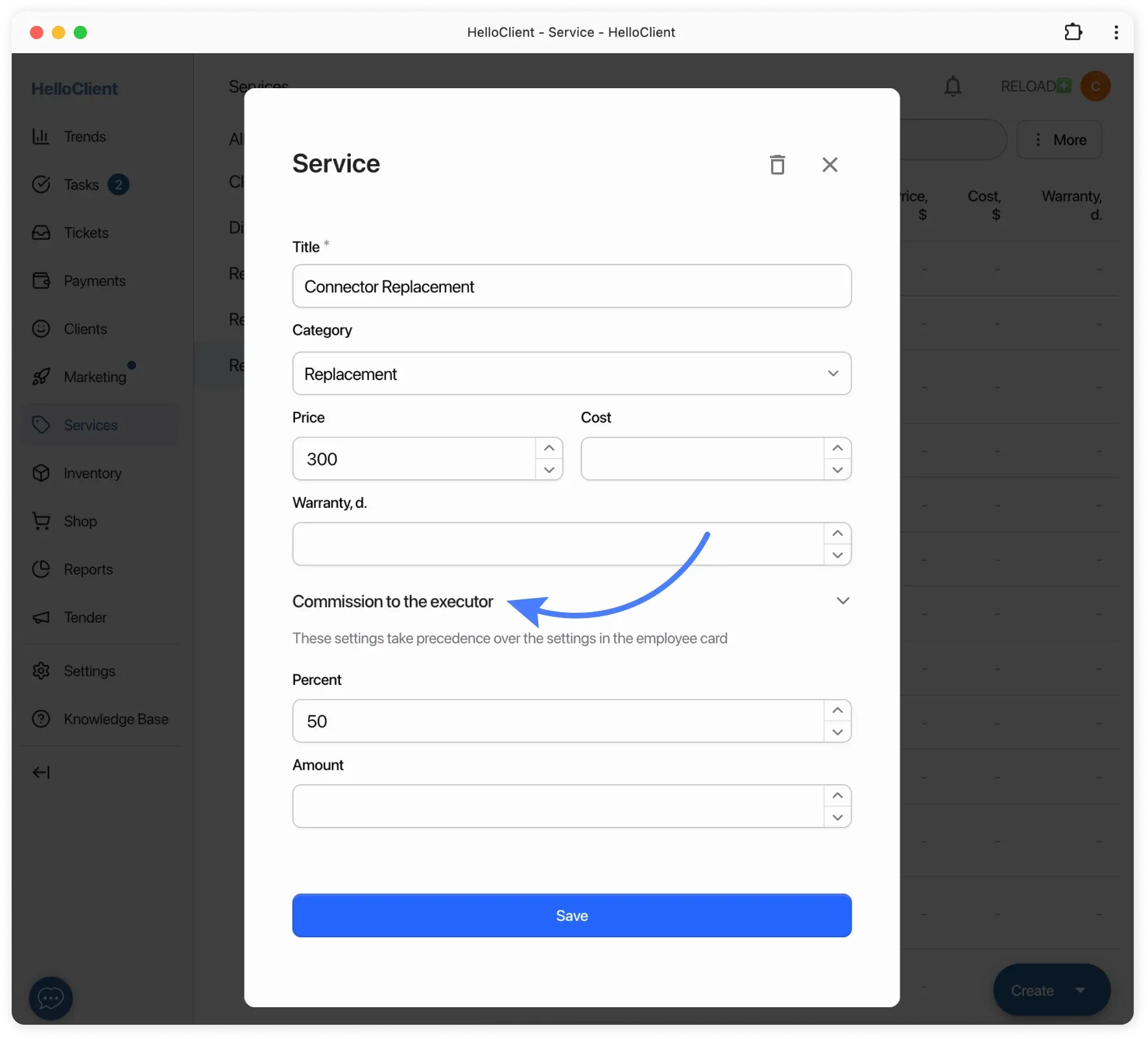
How it works?
Section titled “How it works?”- Set percentage or fixed amount in service card
- Add service to order and assign performer for that service
- When order moves to salary-triggering status, employee receives accrual
Bonus/Penalty System and Salary Setup
Section titled “Bonus/Penalty System and Salary Setup”The system provides two ways to grant an employee a bonus (incentive) or apply a penalty.
Method 1
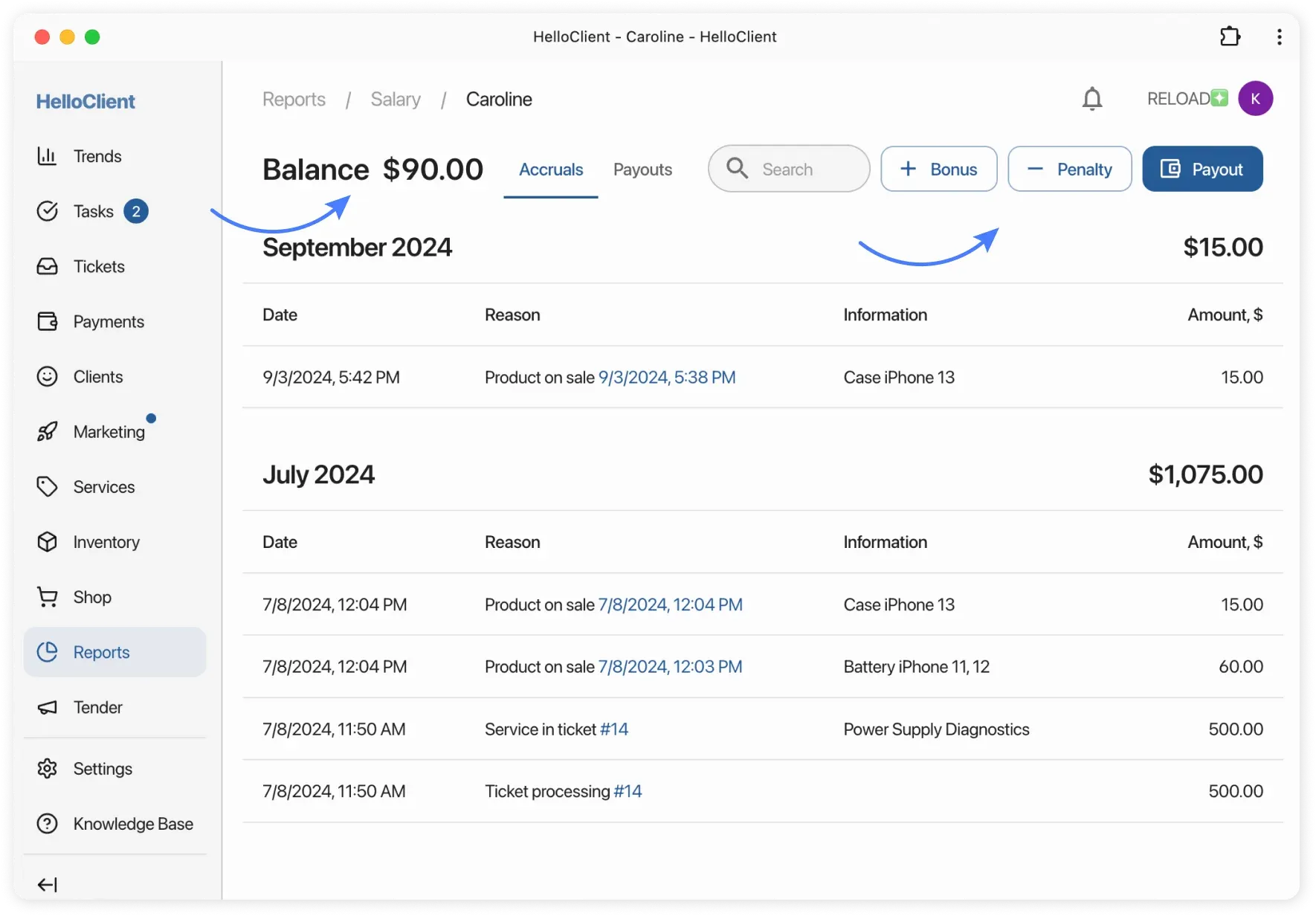
Section titled “Method 1”- Go to Reports → Employees → Salary and open the employee’s report.
- In the top-right corner, click:
- “+ Bonus” — to reward the employee;
- “- Penalty” — to record a penalty.
The accrual will appear in the employee’s report and will be included in the Balance total.
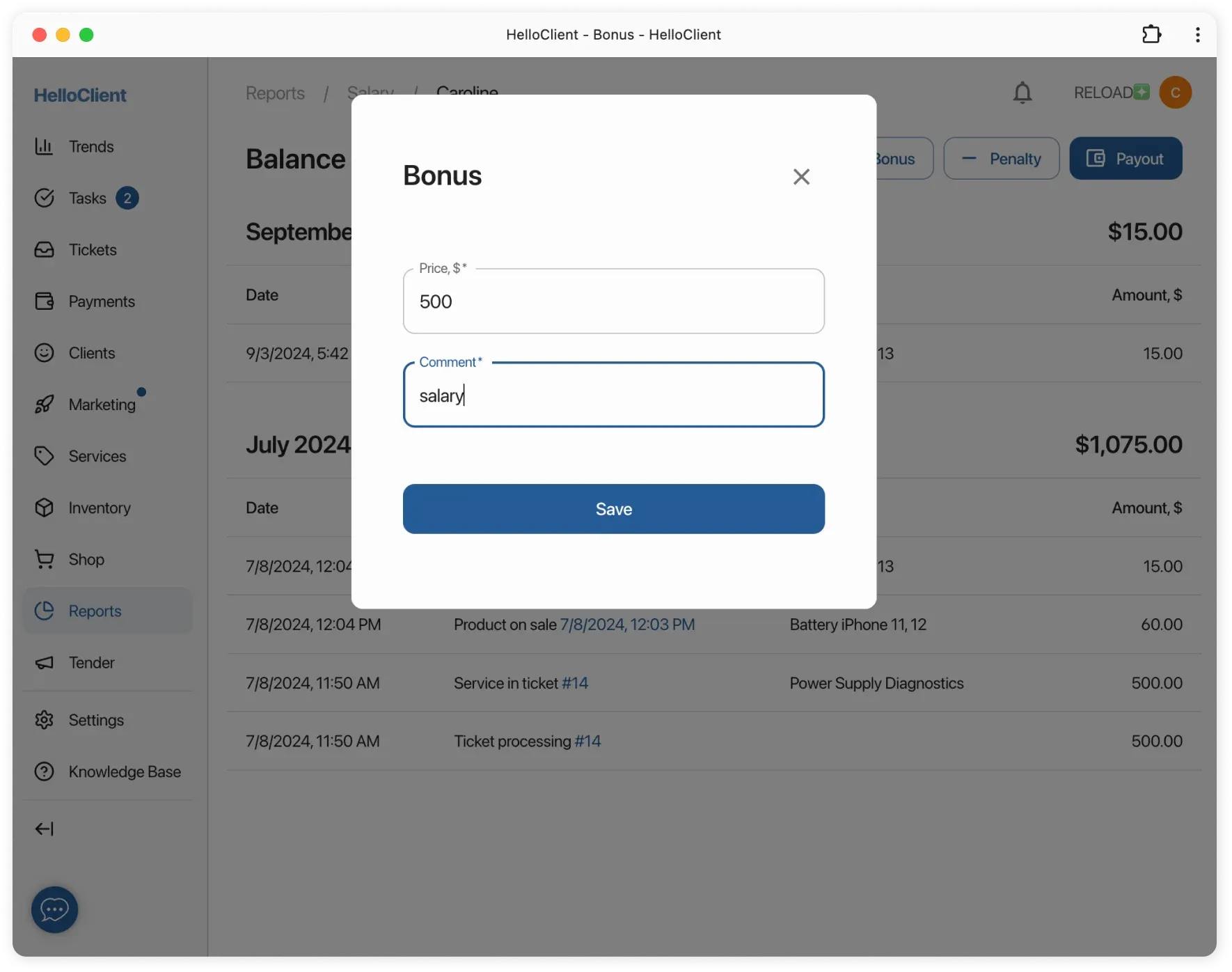
If you want to assign a fixed salary to an employee, you can also do this using the “+ Bonus” button:
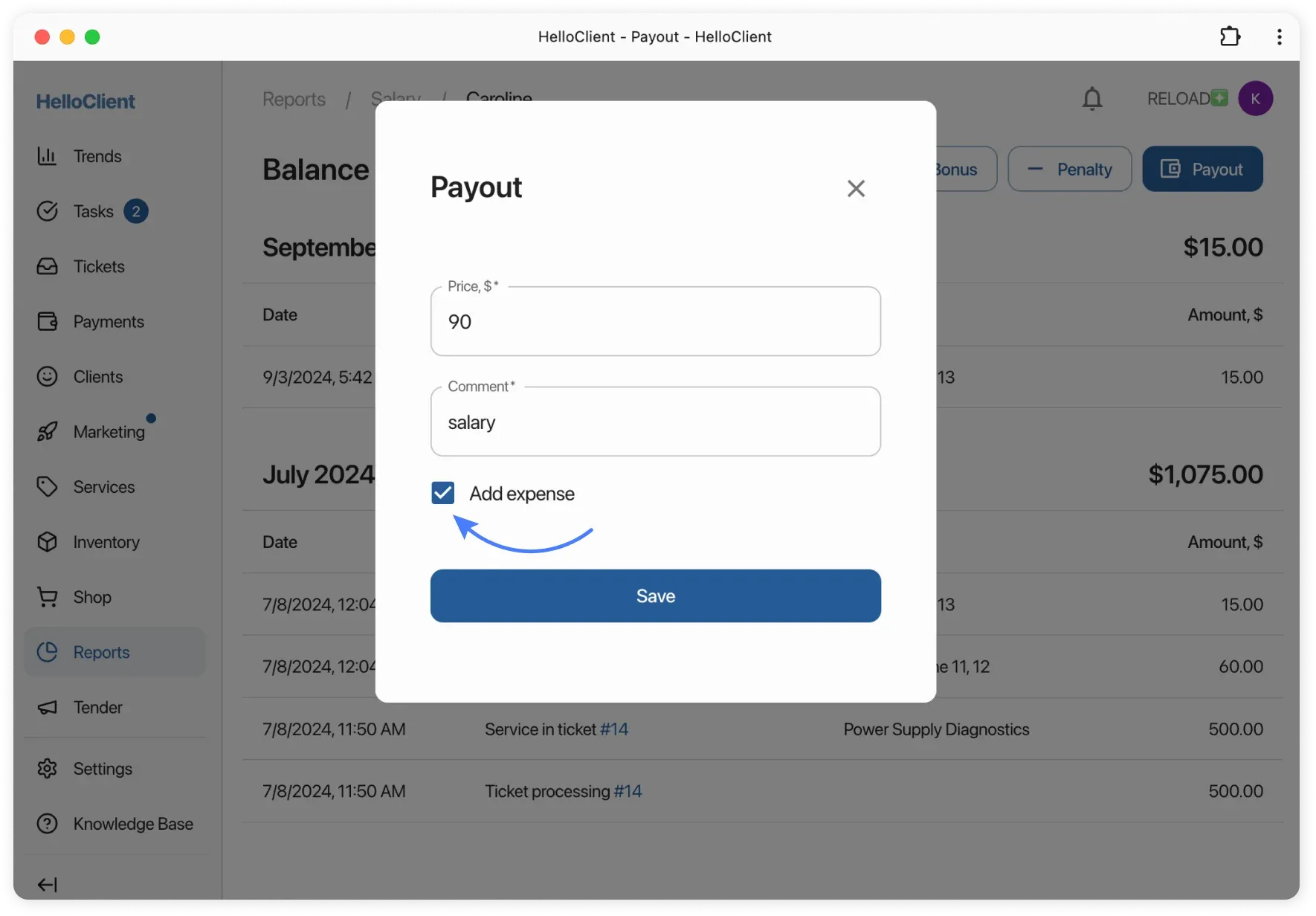
- In the popup window, enter the required amount and specify “Salary” as the reason in the “Comment” field.
- After saving, the accrual will appear in the report, and the balance will reflect the added salary.
Method 2
Section titled “Method 2”- Open the order and go to the “Salary” tab.
- Click “+ Add accrual”.
- Select the employee, enter the amount, and add a comment.
- Set the reason to “Bonus”.
When does salary accrual happen?
Section titled “When does salary accrual happen?”Salary accrual occurs when order status changes to salary-triggering status.
You can configure “Triggers salary accrual” action for specific statuses.
Where to view accruals?
Section titled “Where to view accruals?”- Go to Reports > Salary
- Report shows:
- Balance - total payable amount
- Accruals - breakdown by services, products, bonuses, penalties
- Monthly grouping - for easy analysis
How to add bonus/penalty?
- Click «+ Bonus» or «- Penalty» in employee salary report
How to pay salary?
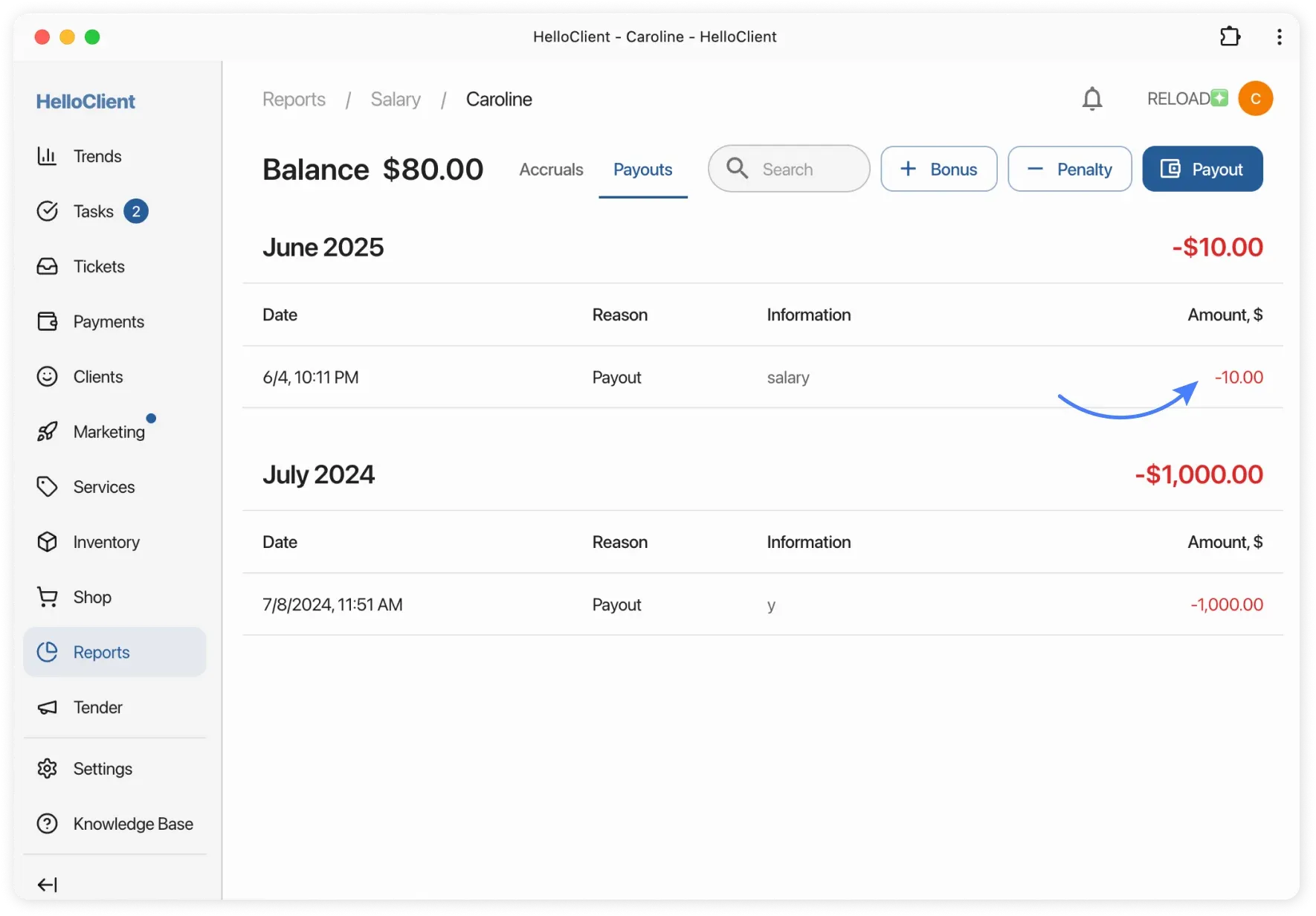
Section titled “How to pay salary?”- In «Salary» report click «Pay»
- Check «Add Expense»
- Expense appears in «Payments» under «Salary Payment» category
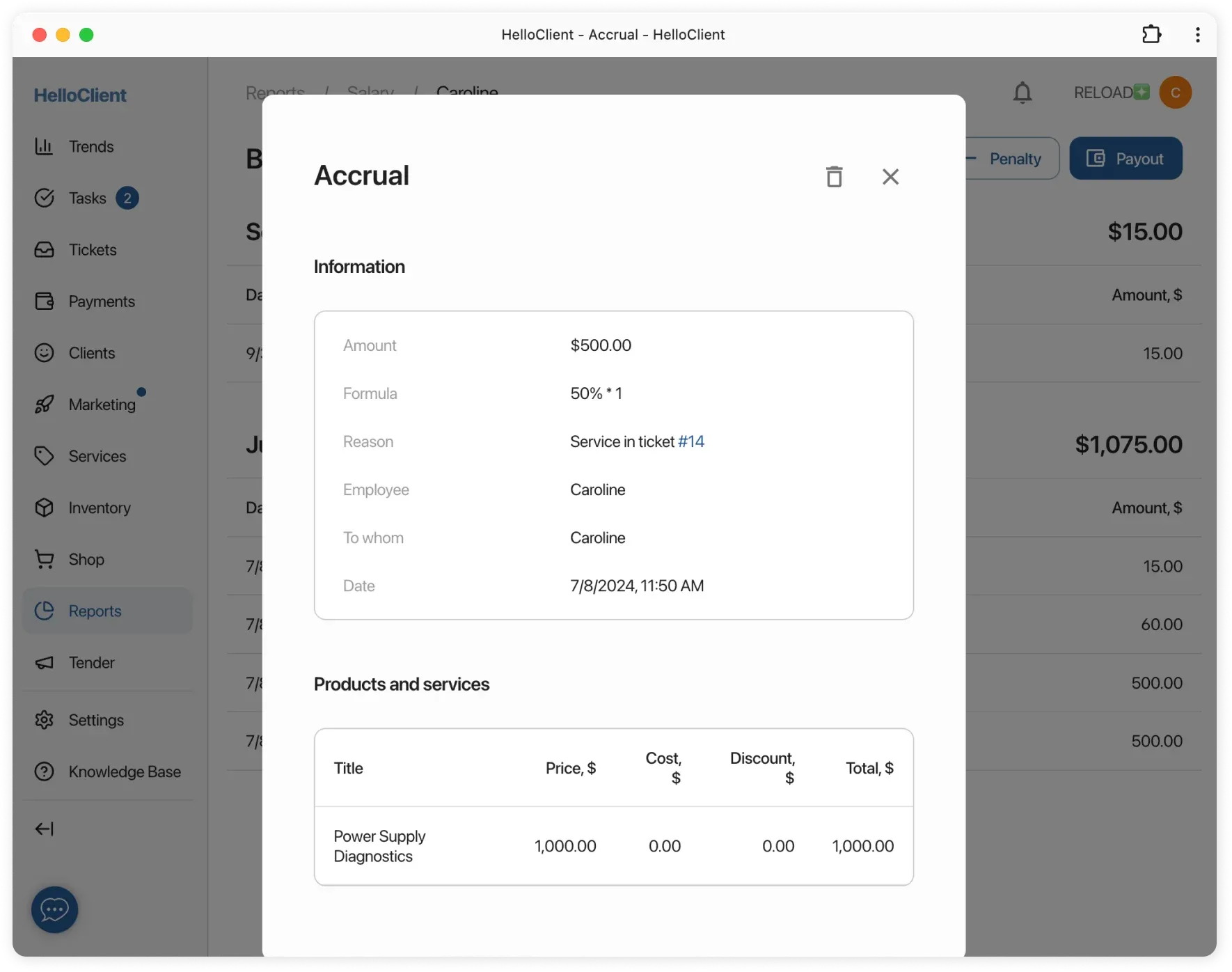
Click any accrual in report for details:
Where to view payment history?
Section titled “Where to view payment history?”In «Payments» tab (in Salary report) → data sorted by months.